Filters
Phaser 4 introduced a couple of special filter effects. The effects are built-in, ready to use, and can be applied to any Game Object.
In Phaser Editor you can add effects to a Game Object, tweak the properties, and see the result in the Scene Editor.
These are the effects it supports:
Adding a filter to a game object
Every game object has a Filters section in the Inspector view:

It contains the Add button that allows you to add a new effect to the game object. When you click the Add button, the Shader Effects dialog appears:
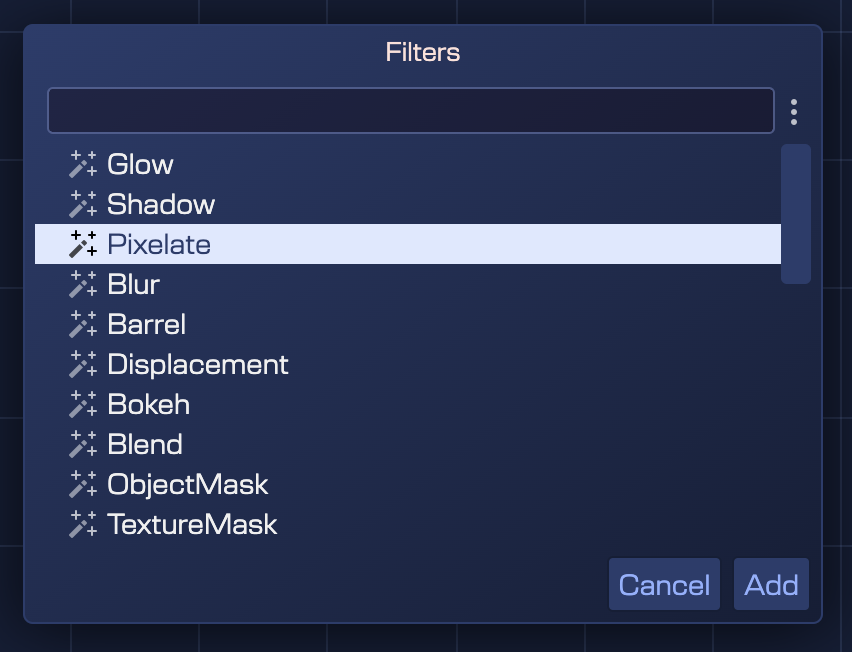
There you can select a filter, and then click the Add button to add it to the game object.
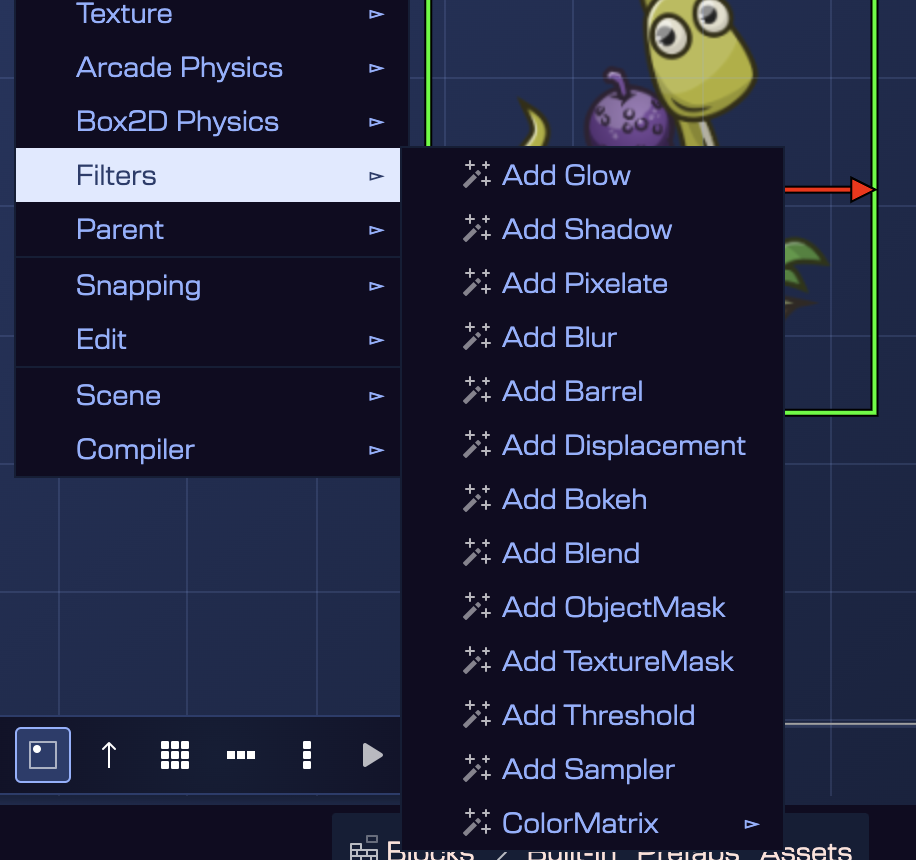
Another way to add a filter is to select a game object in the scene, open the context menu and populate the Filter submenu. It shows the options to add a specific filter:
You can add multiple filters to a game object. They are listed in the Outline view just like any other scene object:
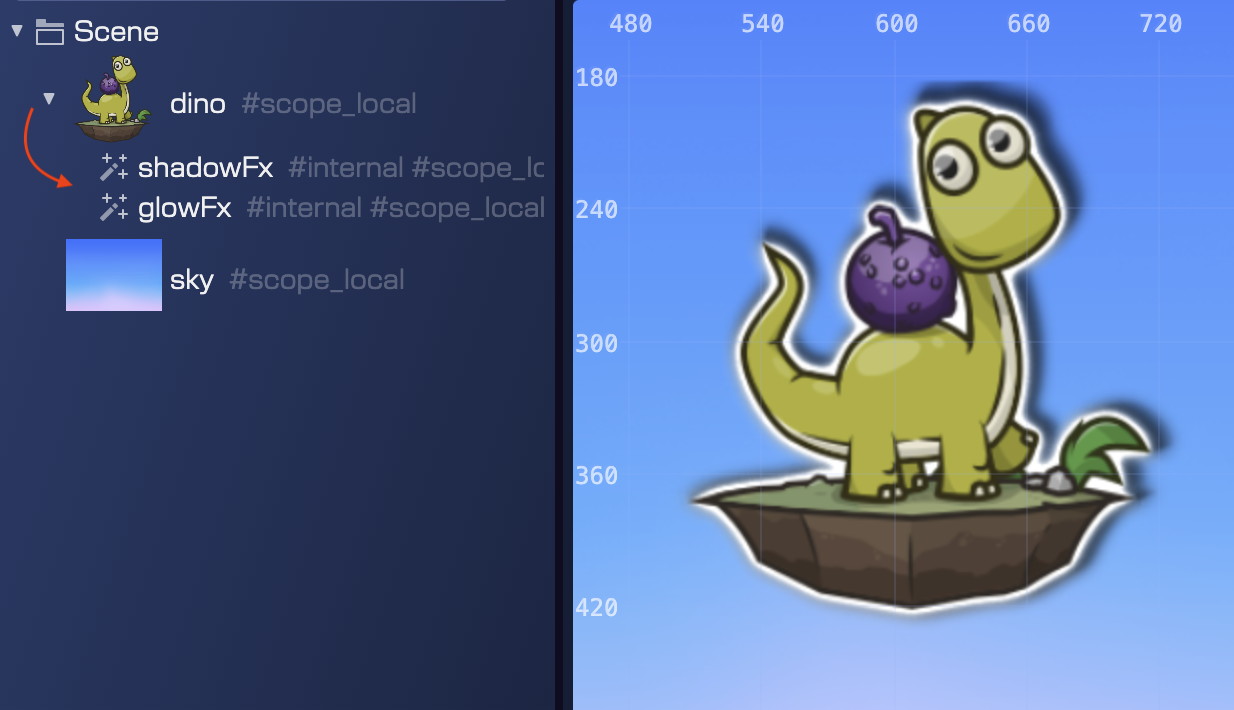
You can select a filter object and delete it, copy/paste it, change its rendering order, or tweak its properties.
The Filter object is like any other scene object, by using the Variable properties, you can assign the filter to a variable, or a field, or set as a nested prefab.
Let’s say you want to tween the intensity of the shadow filter. You can assign the filter to a field by setting the variable scope to CLASS:
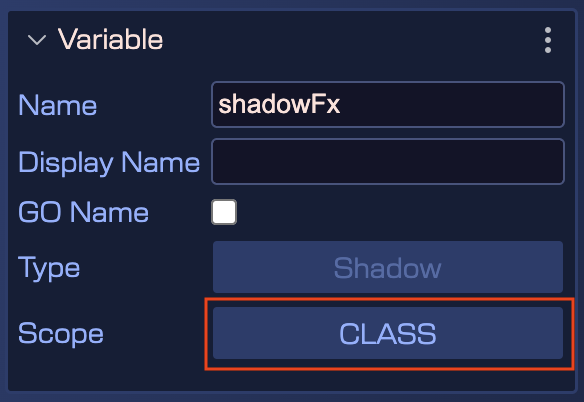
Then the scene compiler generates a variable and field for the FX object:
editorCreate() {
    ...
    // shadowFx
    const shadowFx = logo.filters.internal.addShadow(0, 0, 0.1, 1, 0, 6, 1);
    ...
    this.shadowFx = shadowFx;
}

private shadowFx!: Phaser.Filters.Shadow;
Then, in the create method, you can tween the intensity of the shadow FX:
create() {
    ...
    this.add.tween({
        targets: this.shadowFx,
        intensity: 1,
    });
}
Not only you can assign a filter to a variable, but you can also make a nested prefab with it. This way, you can reuse the filter in different scenes.
Filter properties
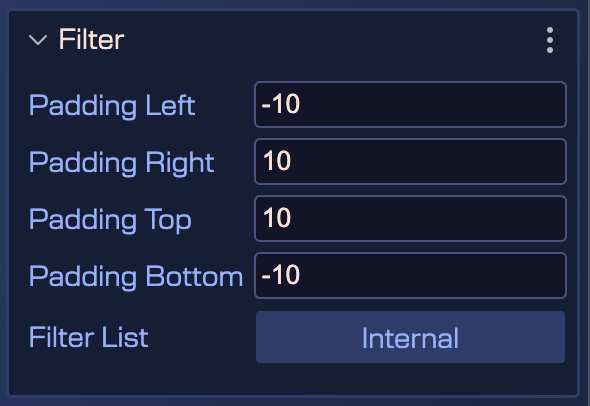
Every filter type shares a common set of properties. You can edit these properties in the Filter section. The properties are about the padding of the filter and the filter list it belongs to (Internal or External):
Glow
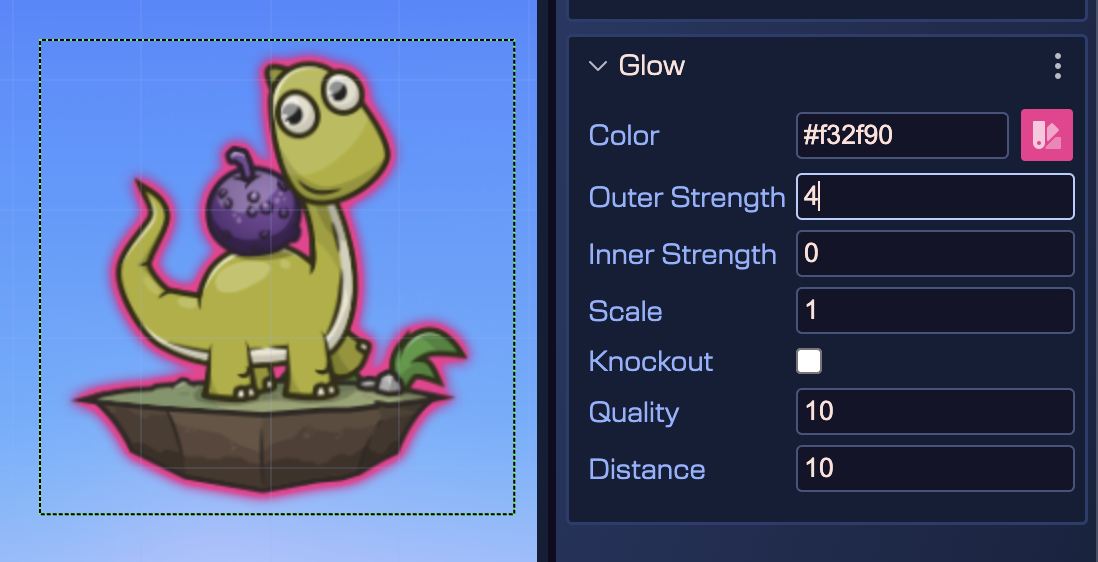
The Glow is a simple filter that adds a glow to the edges of the image.
Learn more about the Phaser.Filters.Glow properties in the Phaser documentation
Shadow
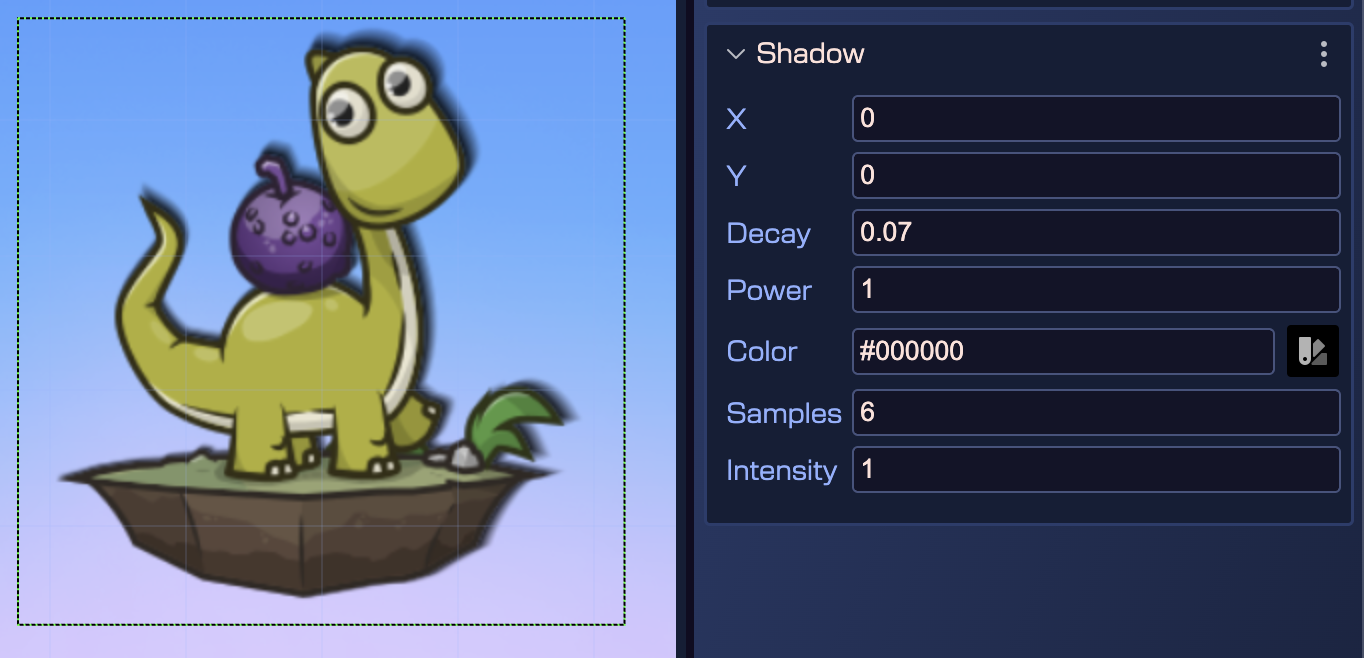
The Shadow is a simple and easy-to-use shadowing filter for your images. You can learn more about its properties in the Phaser.Filters.Shadow Phaser documentation.
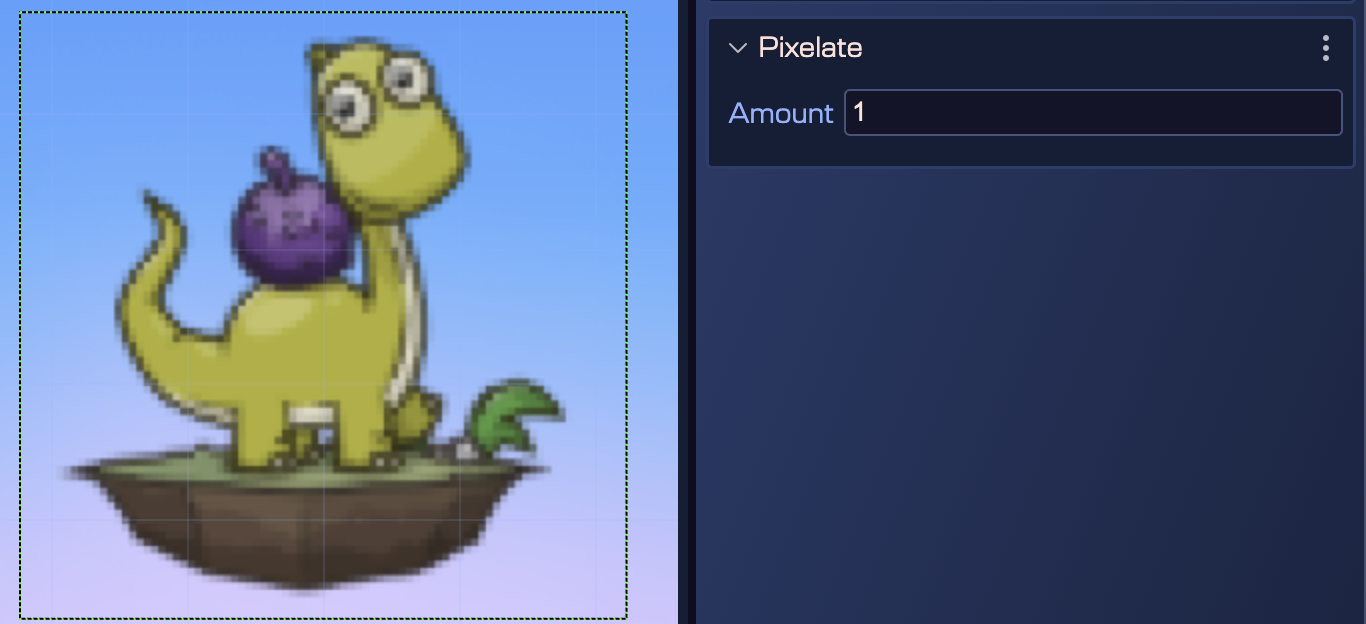
Pixelate
The Pixelate filter is a visual technique that deliberately reduces the resolution or detail of an image, creating a blocky or mosaic appearance composed of large, visible pixels. This filter can be used for stylistic purposes, as a homage to retro gaming, or as a means to obscure certain elements within the game, such as during a transition or to censor specific content.
Learn more about the Phaser.Filters.Pixelate properties in the Phaser documentation
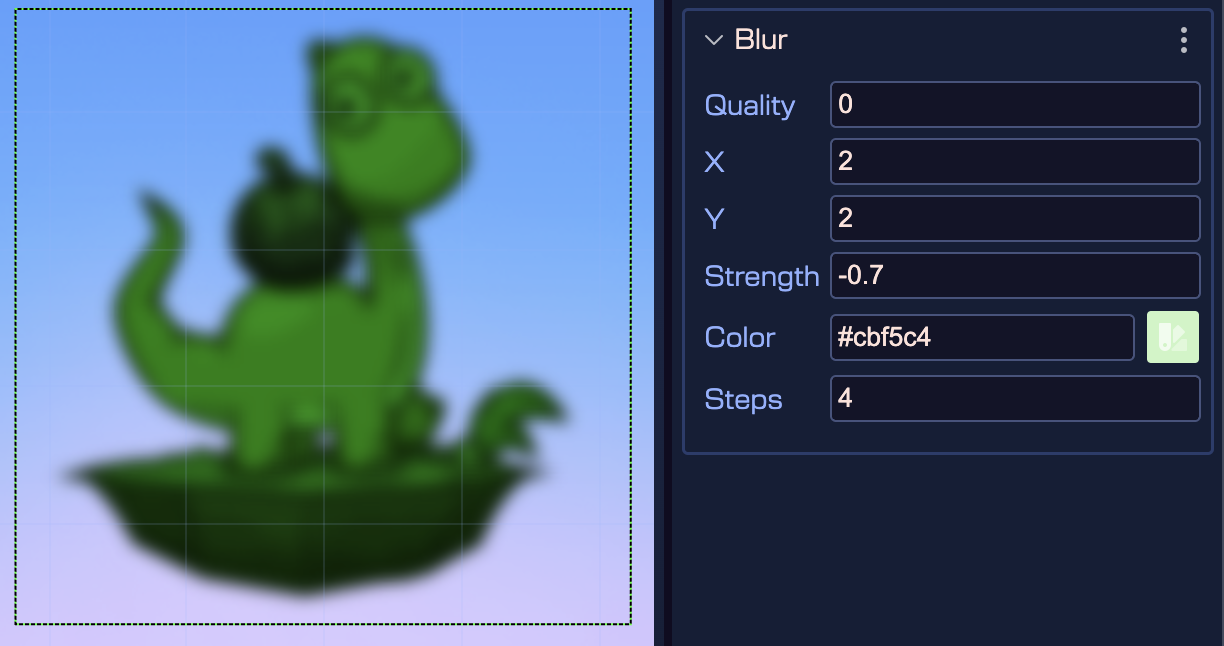
Blur
A Gaussian blur is the result of blurring an image by a Gaussian function. It is a widely used effect, typically to reduce image noise and reduce detail. The visual effect of this blurring technique is a smooth blur resembling that of viewing the image through a translucent screen, distinctly different from the bokeh effect produced by an out-of-focus lens or the shadow of an object under usual illumination.
Learn more about the Phaser.Filters.Blur properties in the Phaser documentation
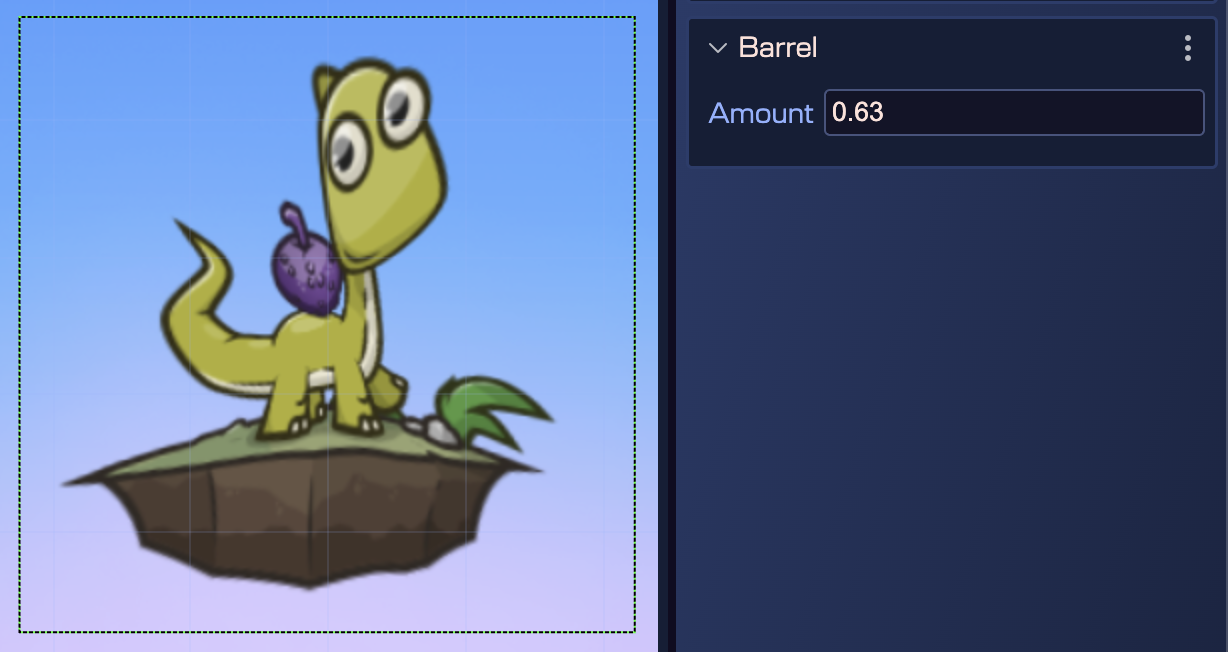
Barrel
A barrel effect allows you to apply either a 'pinch' or 'expand' distortion to a Game Object. The amount of the effect can be modified in real-time.
Learn more about the Phaser.Filters.Barrel properties in the Phaser documentation
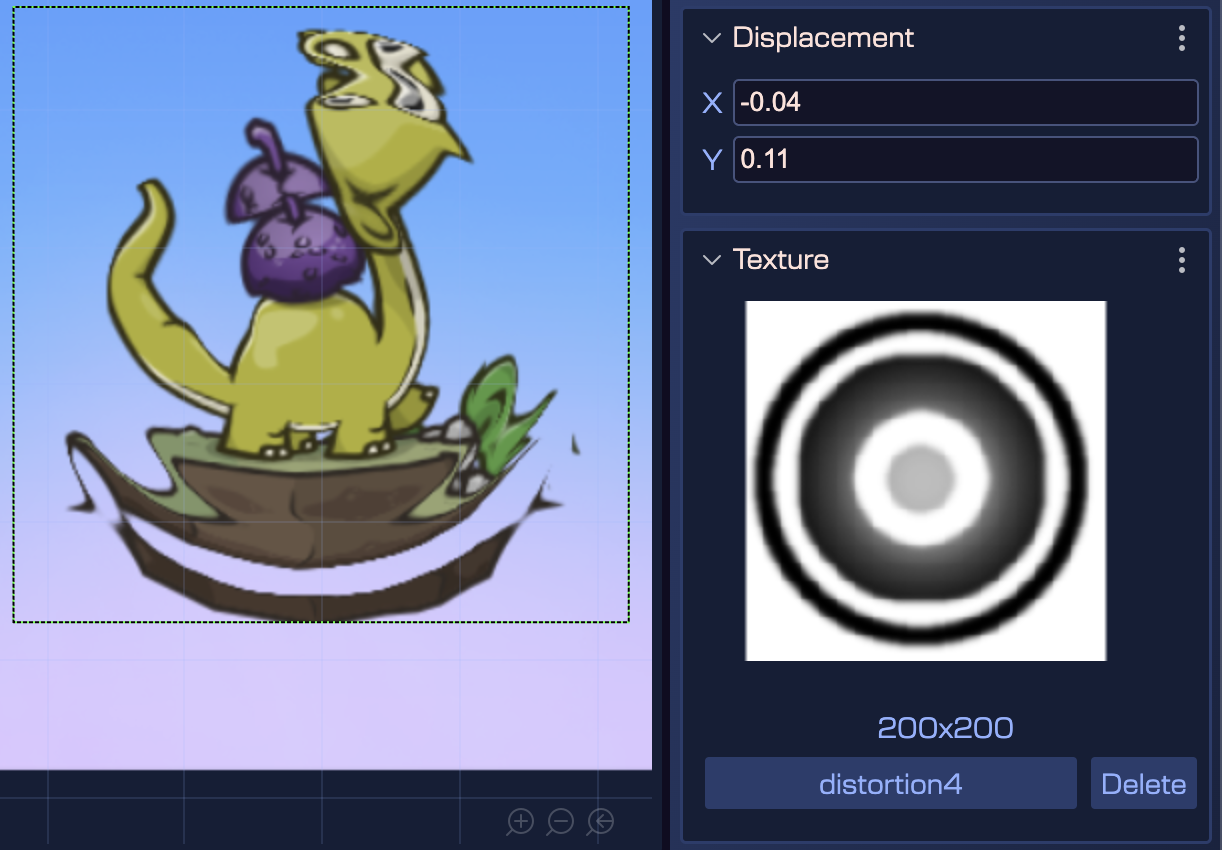
Displacement
This filter will draw a displacement around the texture of the Game Object, effectively masking off any area outside of the displacement without the need for an actual mask. You can control the thickness of the displacement, the color of the displacement and the color of the background, should the texture be transparent. You can also control the feathering applied to the displacement, allowing for a harsh or soft edge.
Please note that adding this effect to a Game Object will not change the input area or physics body of the Game Object, should it have one.
Learn more about the Phaser.Filters.Displacement properties in the Phaser documentation
Bokeh
Bokeh refers to a visual effect that mimics the photographic technique of creating a shallow depth of field. This effect is used to emphasize the game’s main subject or action, by blurring the background or foreground elements, resulting in a more immersive and visually appealing experience. It is achieved through rendering techniques that simulate the out-of-focus areas, giving a sense of depth and realism to the game’s graphics.
See also Tilt Shift.
Learn more about the Phaser.Filters.Bokeh properties in the Phaser documentation
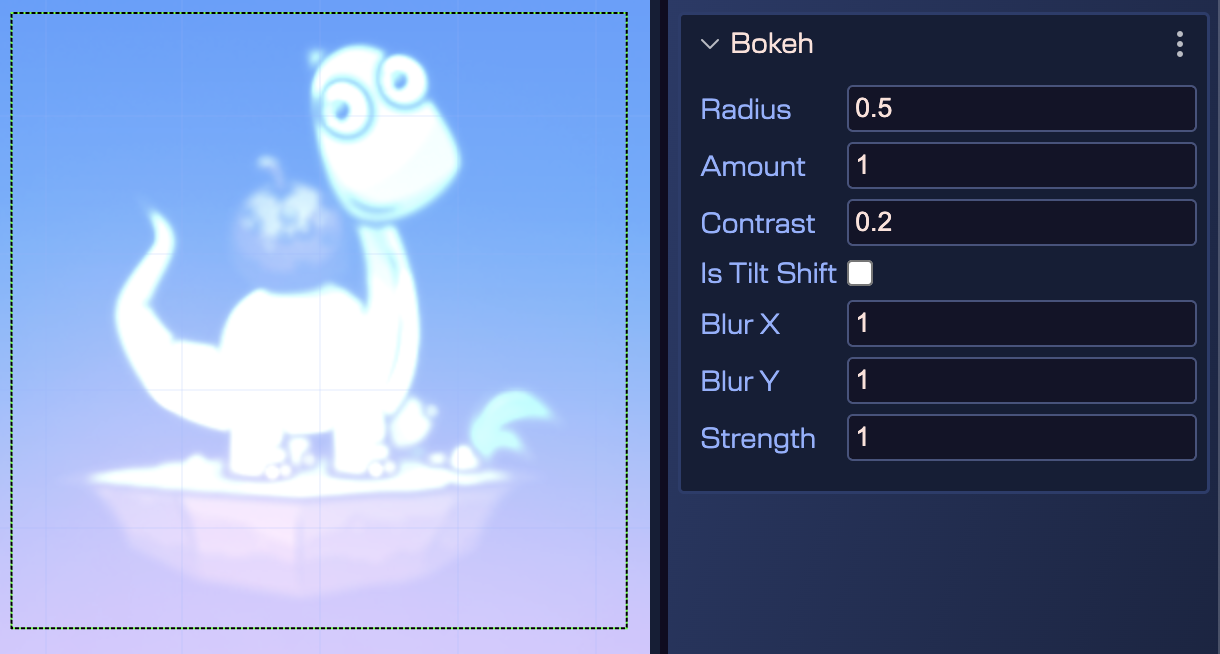 !
!
Blend
This filter controller manages the blend effect for a Camera. A blend effect allows you to apply another texture to the view using a specific blend mode. This supports blend modes not otherwise available in WebGL.
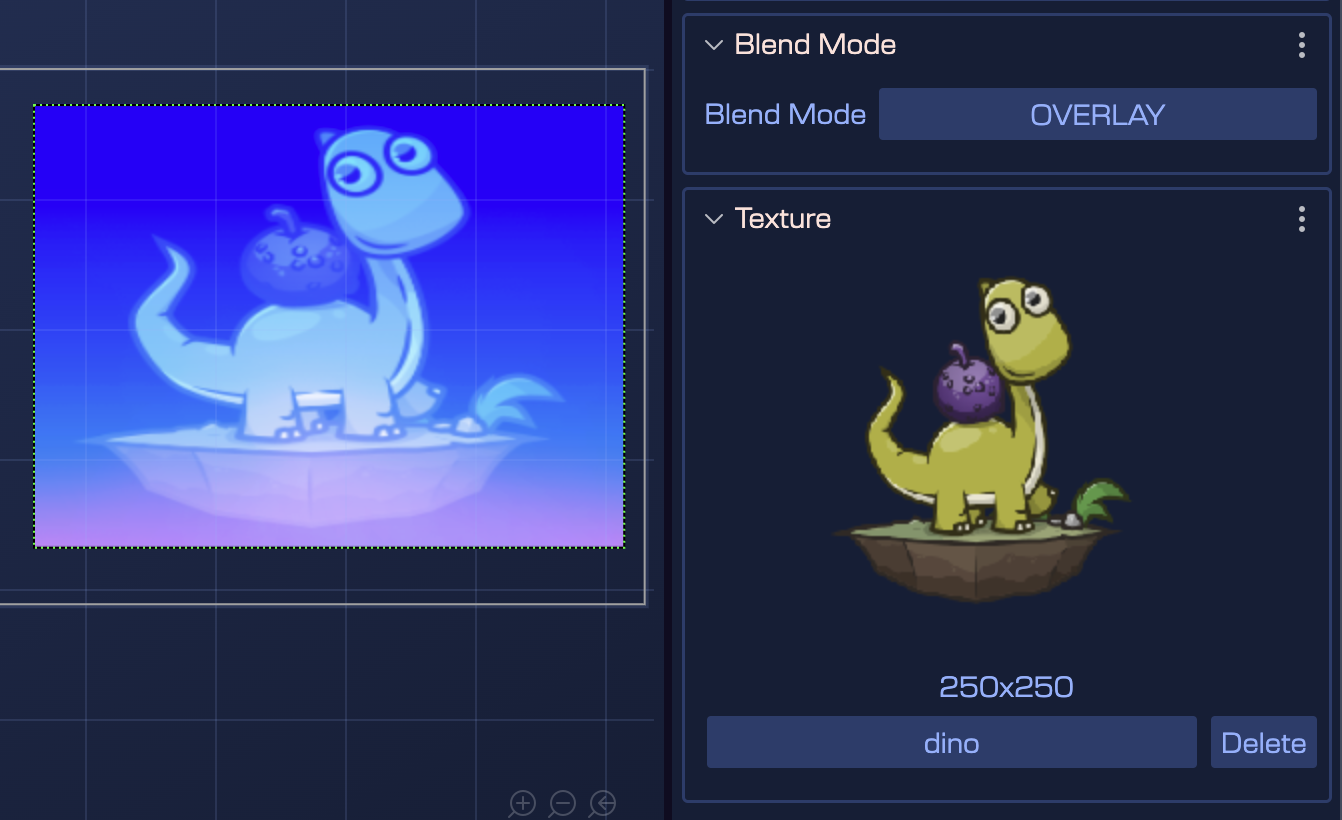
Mask
The Mask filter is a special filter that allows you to apply a mask to a Game Object. This filter is used to create a variety of effects, such as revealing or hiding parts of the object based on the mask texture. Phaser allows you to use any texture as a mask, or even a game object as a mask.
In Phaser Editor, we divided the Mask into two different objects: TextureMask and ObjectMask.
TextureMask
A background image with a texture mask applied to it:
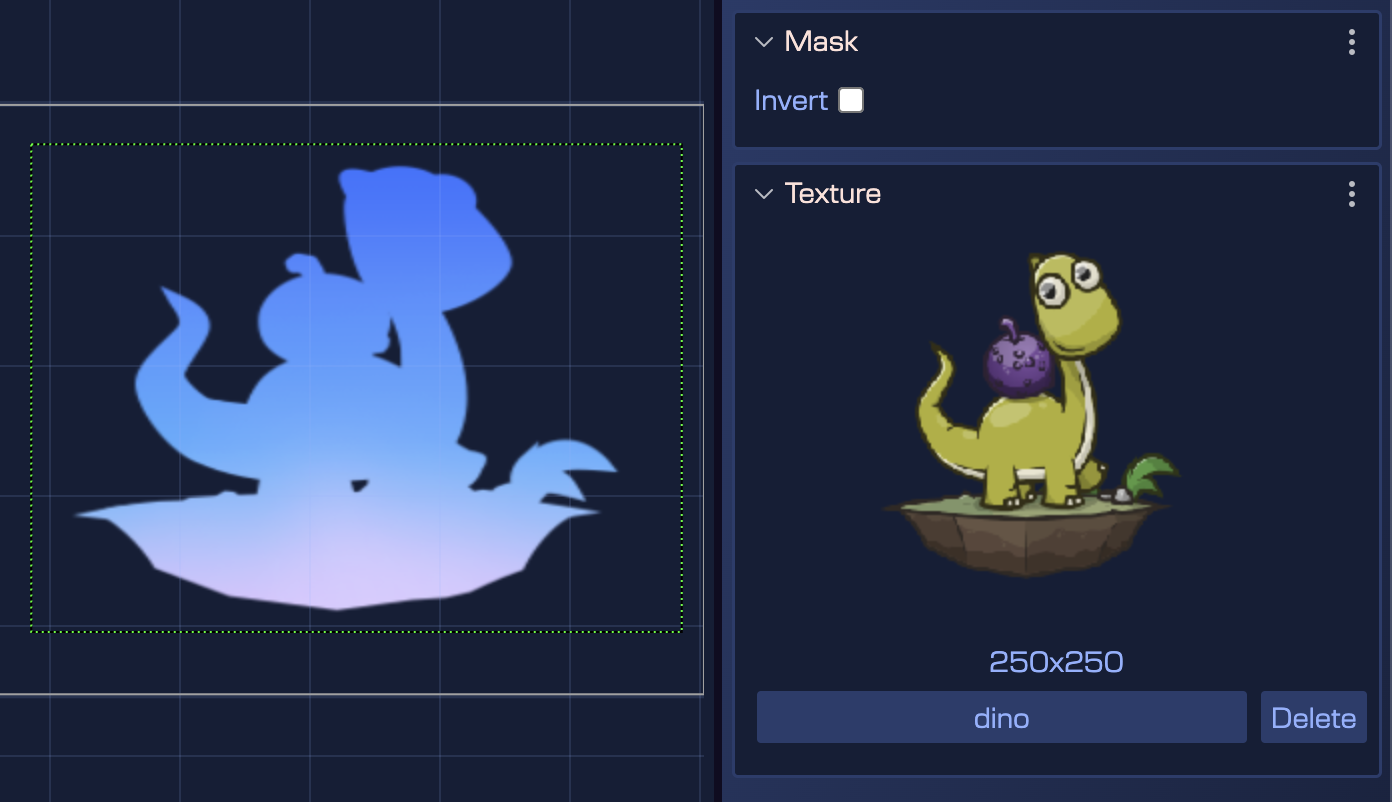
Same filter, but inverted:
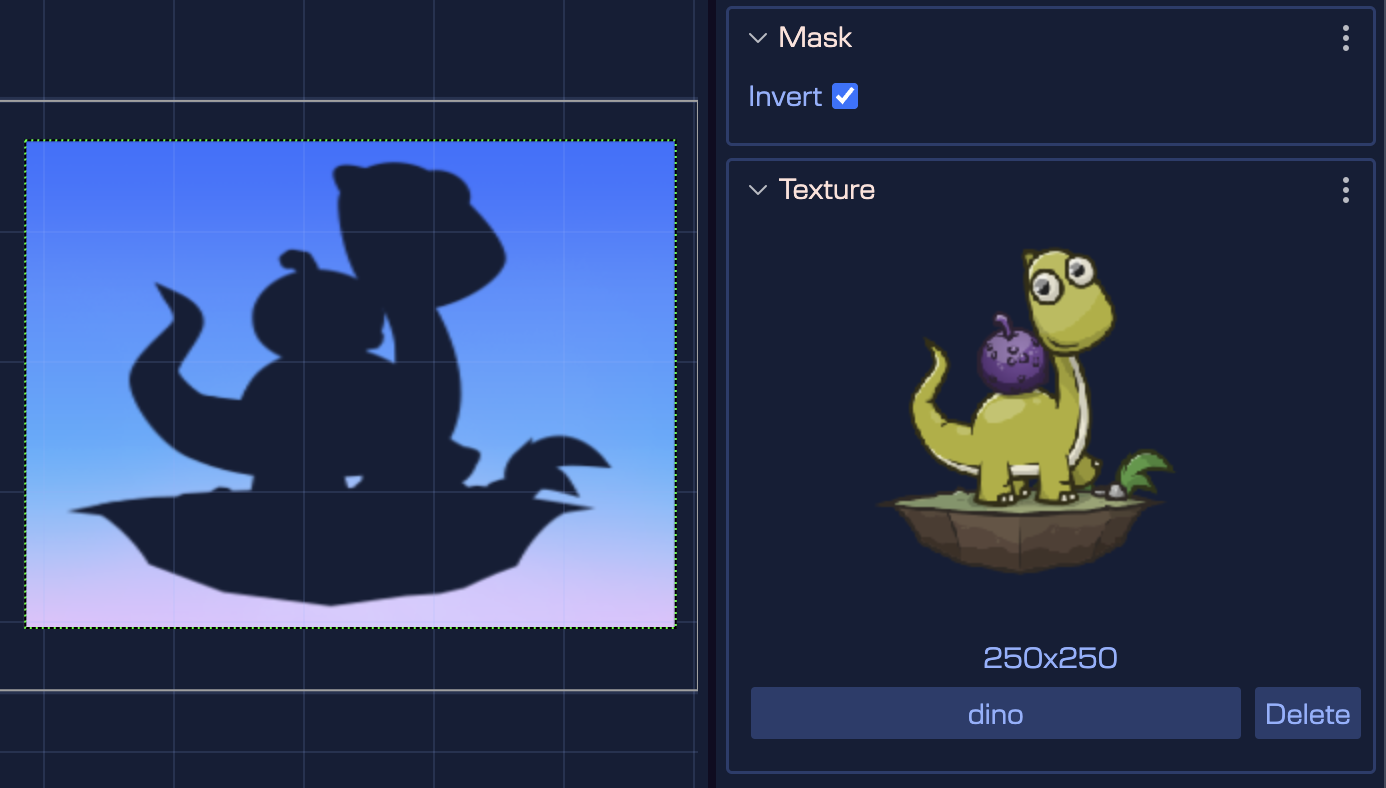
ObjectMask
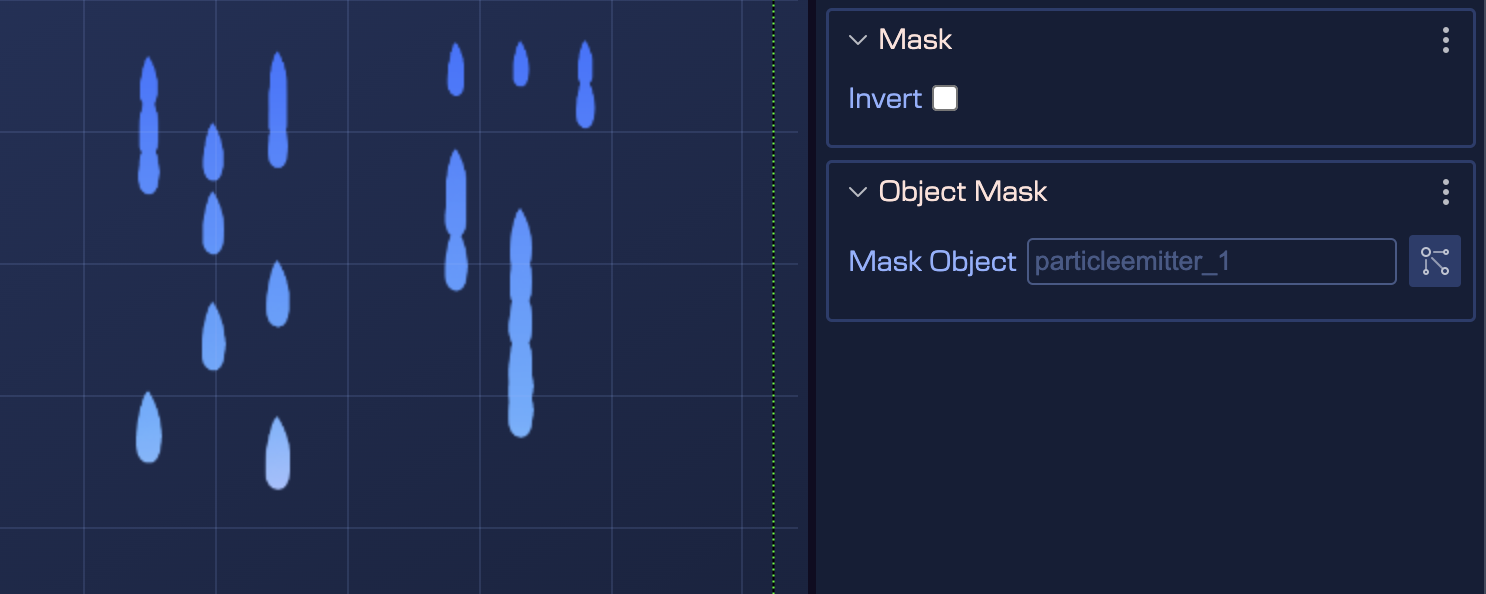
You can use any game object as a mask. For example, a particle emitter can be used as a mask for a background image:
Threshold
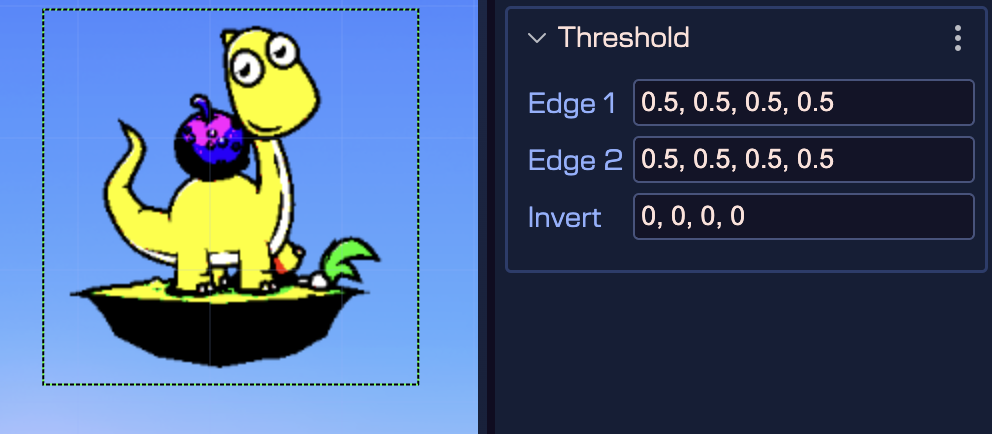
Input values are compared to a threshold value or range. Values below the threshold are set to 0, and values above the threshold are set to 1. Values within the range are linearly interpolated between 0 and 1. This is useful for creating effects such as sharp edges from gradients, or for creating binary effects.
The threshold is stored as a range, with two edges. Each edge has a value for each channel, between 0 and 1. If the two edges are the same, the threshold has no interpolation, and will output either 0 or 1. Each channel can also be inverted.
Sampler
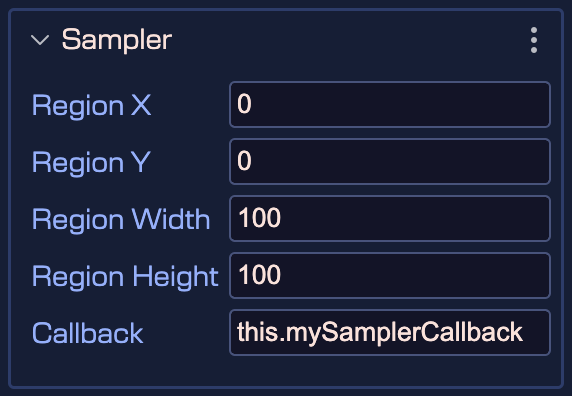
This filter manages a sampler. It doesn't actually render anything, and leaves the image unaltered. It is used to sample a region of the camera view, and pass the results to a callback. This is useful for extracting data from the camera view. This operation is expensive, so use sparingly.
ColorMatrix
ColorMatrix refers to a visual effect that mimics the photographic technique of creating a shallow depth of field. This effect is used to emphasize the game’s main subject or action, by blurring the background or foreground elements, resulting in a more immersive and visually appealing experience. It is achieved through rendering techniques that simulate the out-of-focus areas, giving a sense of depth and realism to the game’s graphics.
Learn more about the Phaser.Filters.ColorMatrix properties in the Phaser documentation
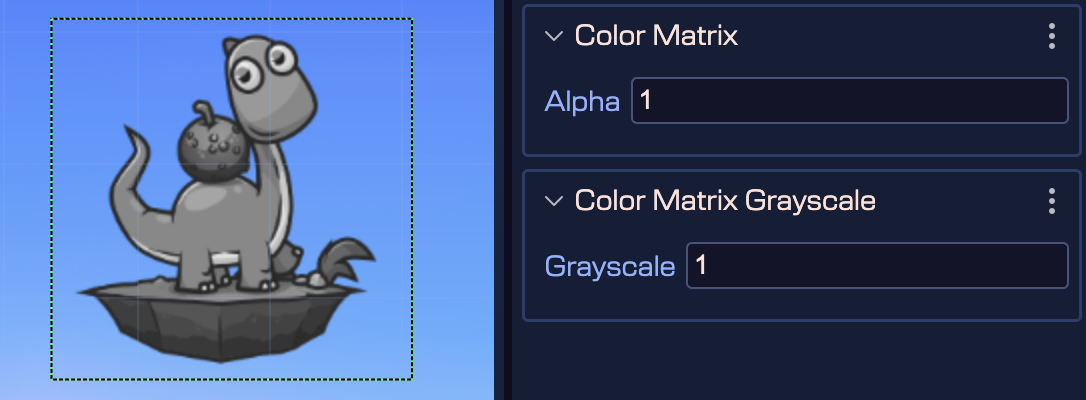
The ColorMatrix FX has different presets that can be used to create different effects.
The presets are:
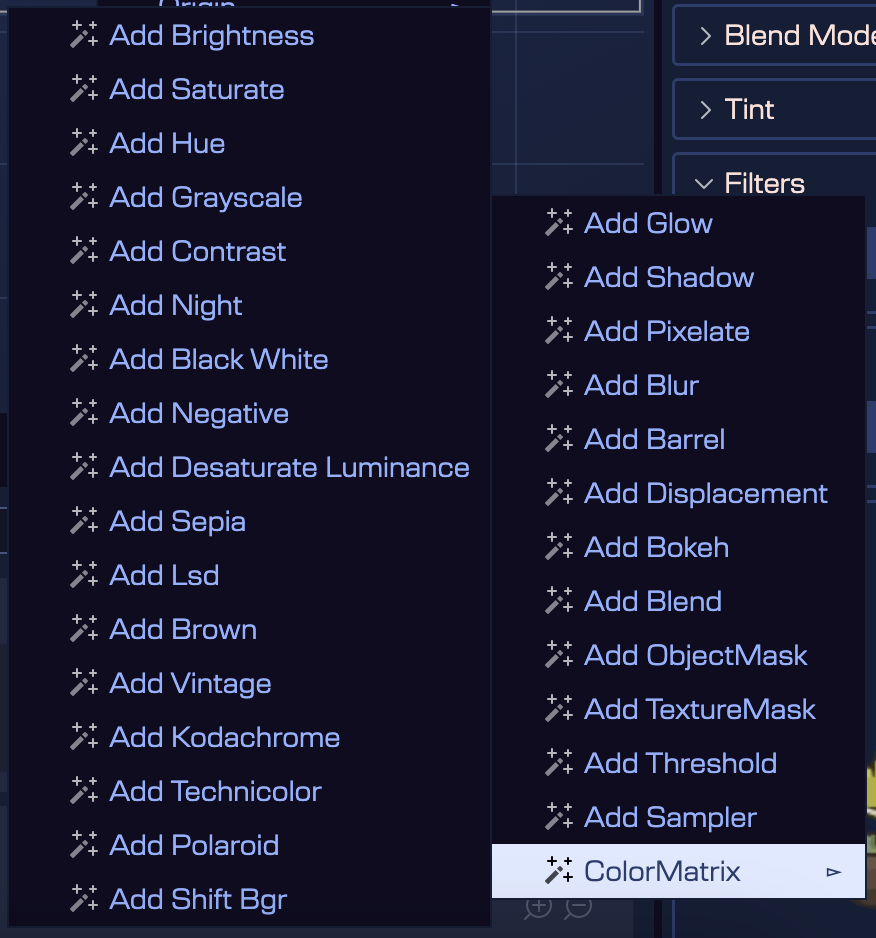
All presets have in common the Alpha property, which allows you to set the alpha of the filter. The other properties are specific to each preset.
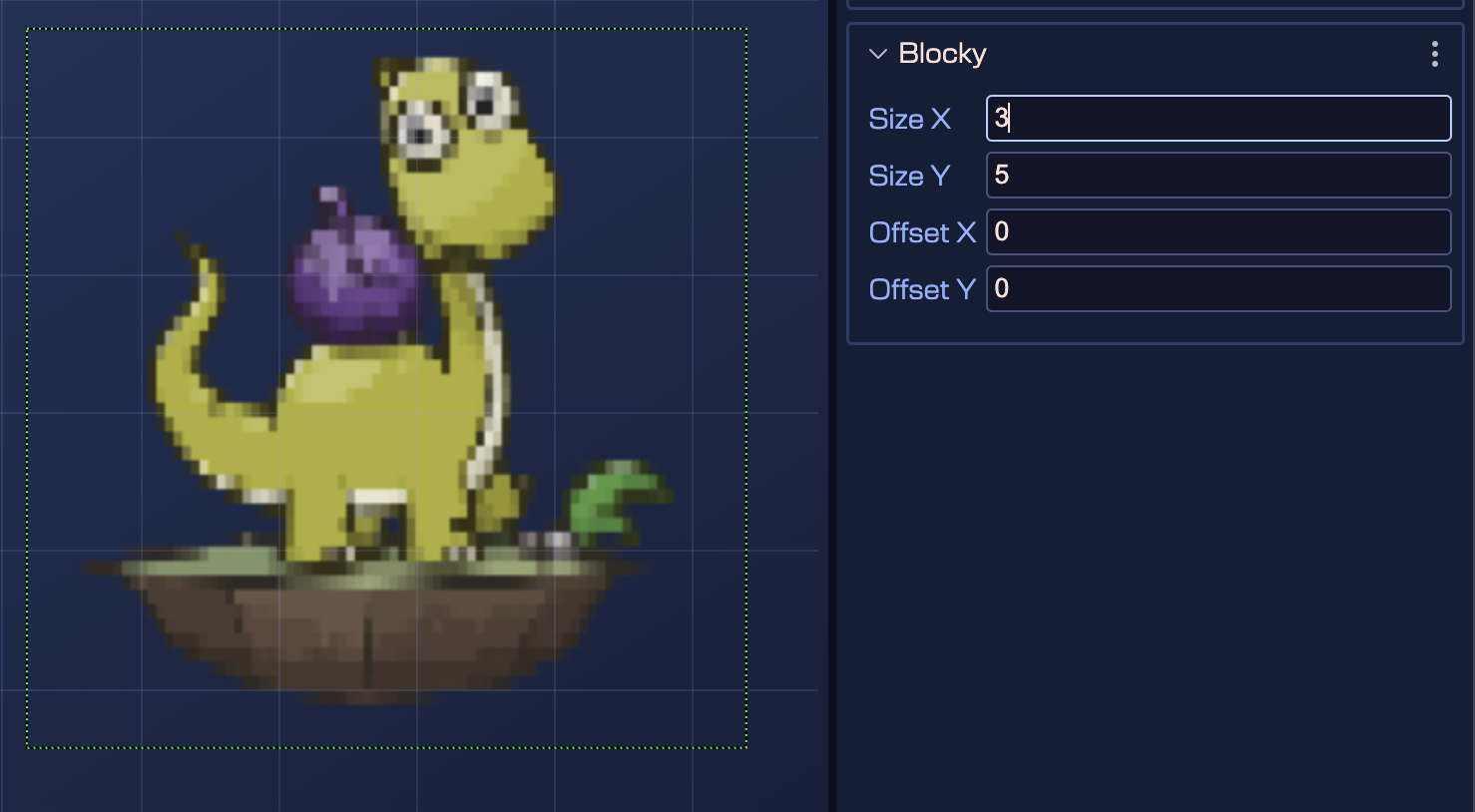
Blocky
The Blocky filter creates a pixelated or blocky appearance by reducing the resolution of an image. It works by taking the central pixel of a block of pixels and using it to fill the entire block, creating large visible pixels. This effect is often used for stylistic purposes (such as pixel art), to obscure certain elements during transitions, or to censor specific content. Unlike the Pixelate filter, Blocky preserves the original colors instead of blending them.
Learn more about the Phaser.Filters.Blocky properties in the Phaser documentation
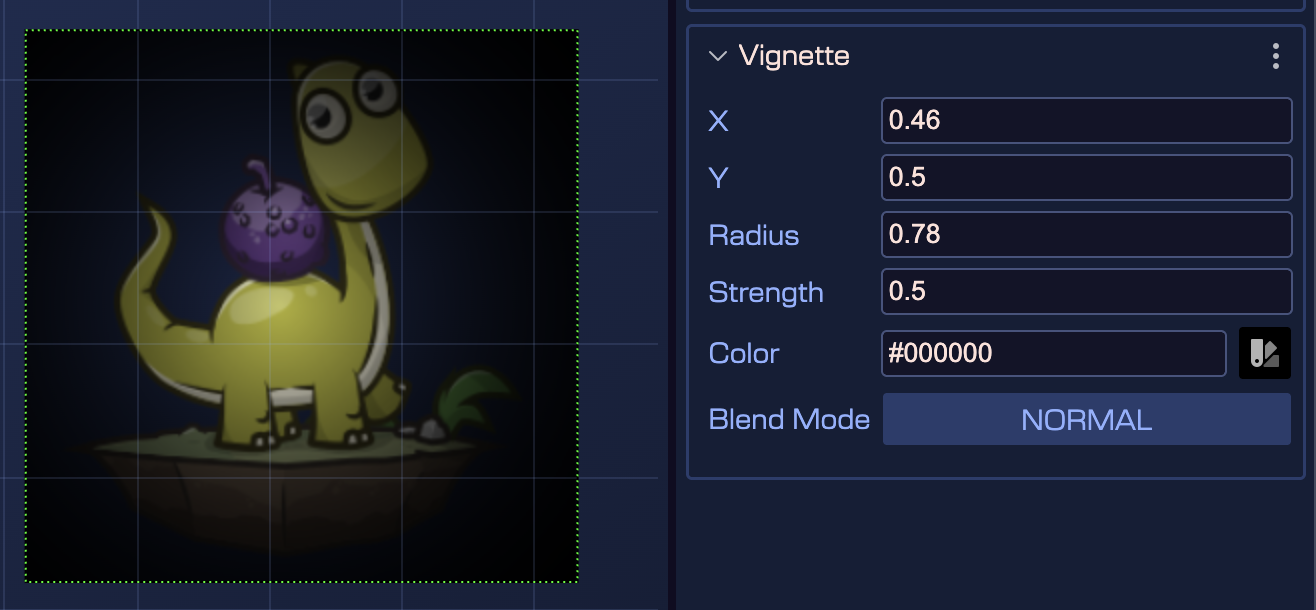
Vignette
The Vignette filter creates a visual effect where the edges of the screen or game object gradually darken or blur, creating a frame-like appearance. This effect is used to draw the player's focus towards the central action or subject, enhance immersion, and provide a cinematic or artistic quality to the game's visuals. The filter supports colored borders and a limited set of blend modes (NORMAL, ADD, MULTIPLY, and SCREEN) to increase its stylistic power.
Learn more about the Phaser.Filters.Vignette properties in the Phaser documentation
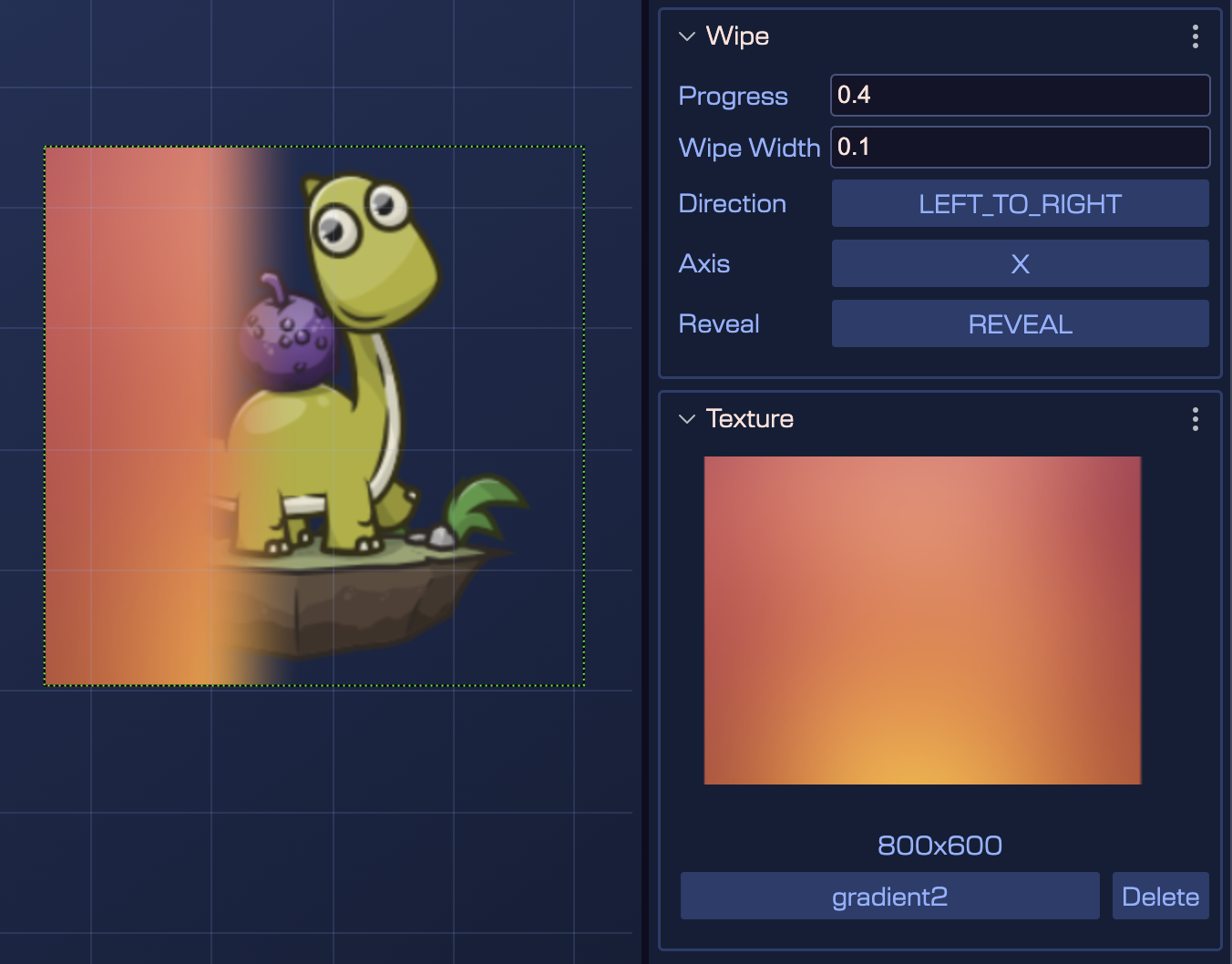
Wipe
The Wipe filter creates a wipe or reveal transition effect that gradually uncovers or conceals elements in the game, such as images, text, or scene transitions. This effect is commonly used to create a sense of progression, reveal hidden content, or provide smooth and visually appealing transitions between game states. You can control both the direction (left-to-right, right-to-left, top-to-bottom, or bottom-to-top) and axis (X or Y) of the wipe effect, as well as the progress value (typically animated via a Tween).
Learn more about the Phaser.Filters.Wipe properties in the Phaser documentation
ImageLight
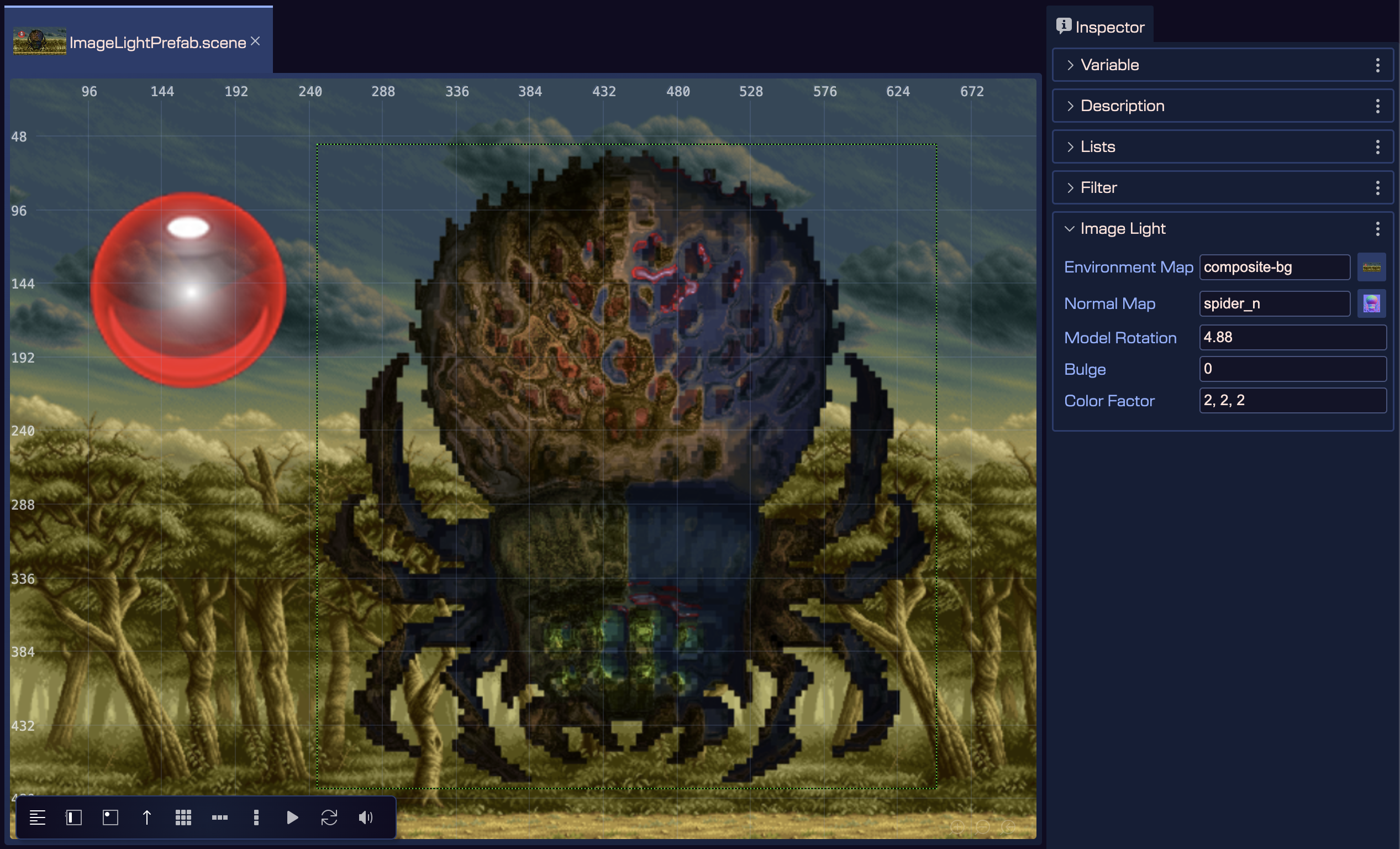
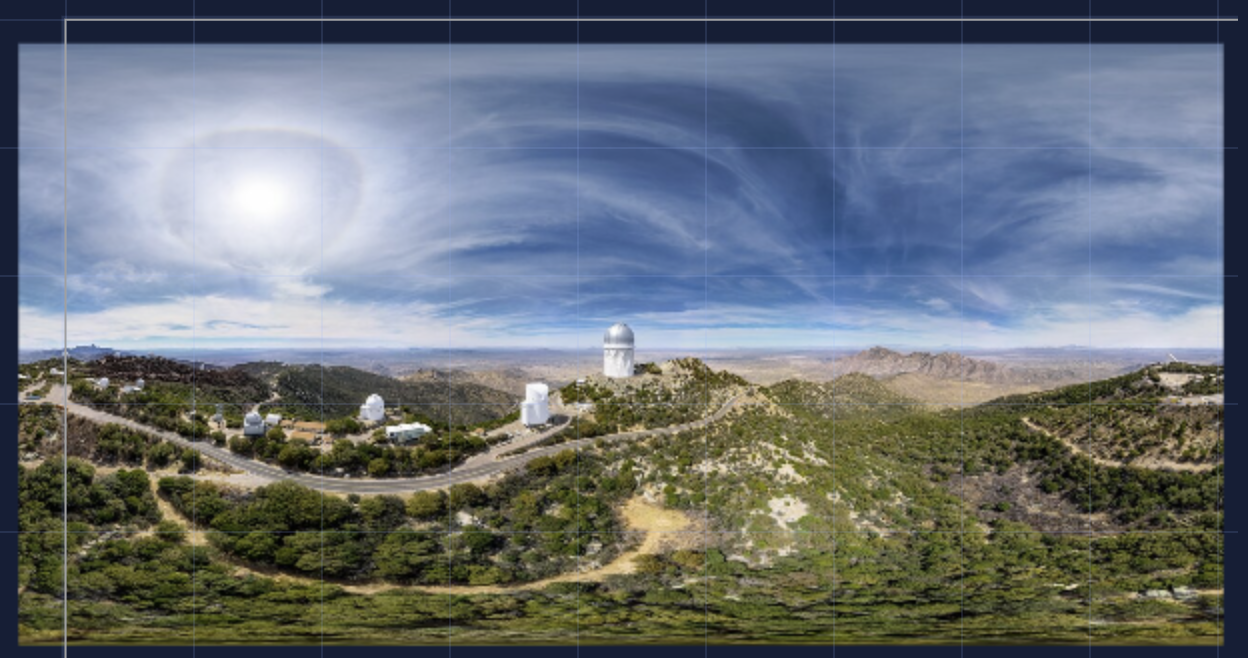
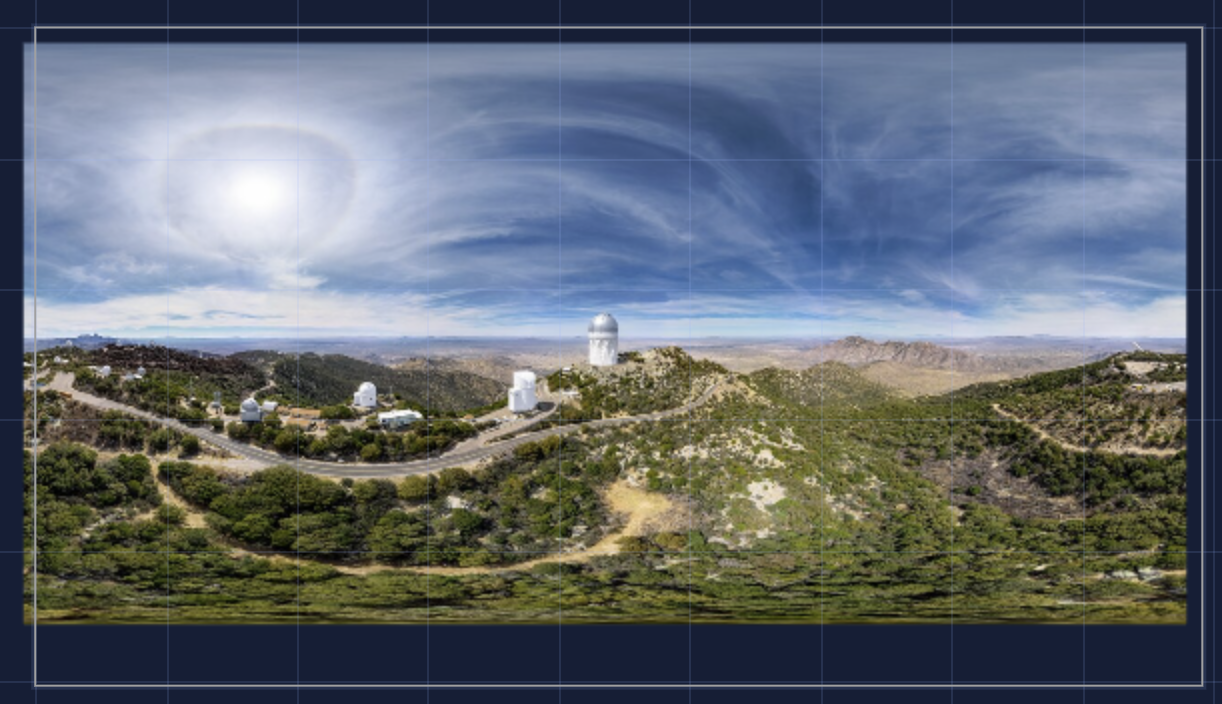
ImageLight is a filter for image-based lighting (IBL) that simulates the lighting of an image using an environment map and a normal map. The environment map is a panorama image that describes the lighting of the scene, where the top of the image represents the sky, the bottom represents the ground, and the X axis covers a full rotation. The effect creates reflections of the environment at infinite range—a sharp environment map produces sharp reflections, while a blurry one produces diffuse reflections. For best results, use the PanoramaBlur filter to create correctly blurred environment maps, and the NormalTools filter to manipulate normal maps if necessary.
Learn more about the Phaser.Filters.ImageLight properties in the Phaser documentation
Key
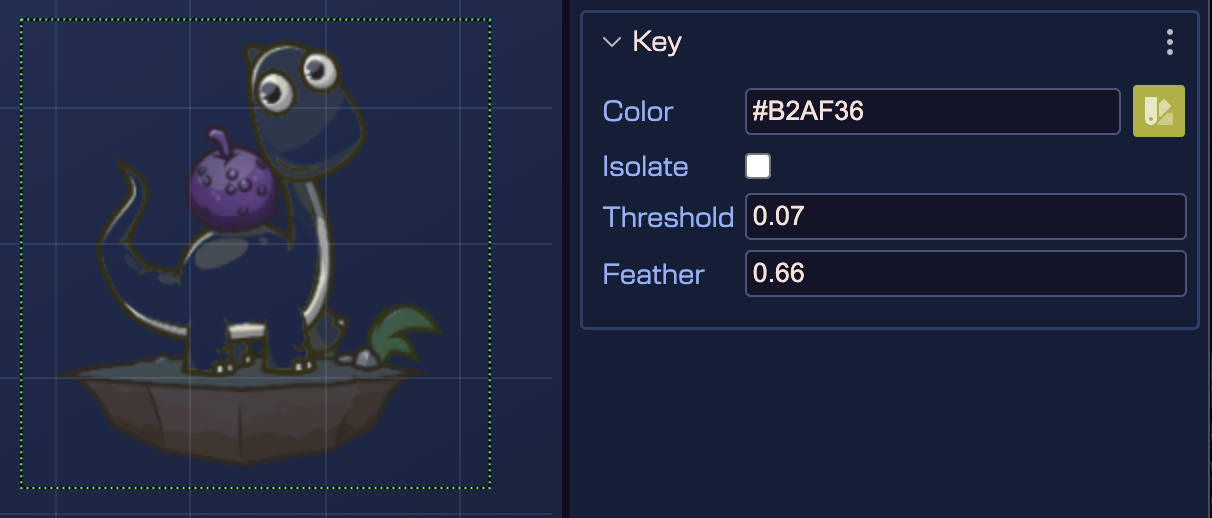
The Key filter removes or isolates a specific color from an image. It can be used to remove a background color from an image (like a green screen effect) or to isolate a specific color for further processing. By default, Key removes pixels that match the key color, but you can instead keep only the matching pixels by setting isolate to true. The threshold and feather settings control how closely the key color matches by measuring the distance between color vectors (how close the RGB values of the pixel are to the RGB values of the key color).
Learn more about the Phaser.Filters.Key properties in the Phaser documentation
NormalTools
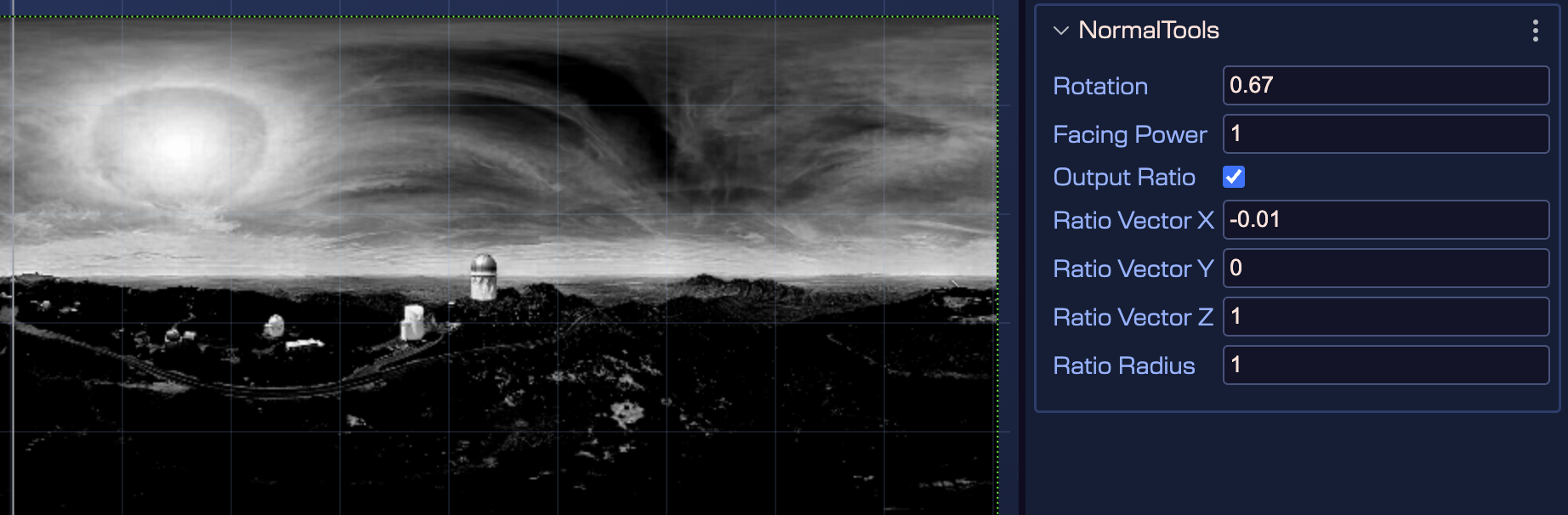
NormalTools is a filter for manipulating the normals of a normal map. It provides several functions: rotating or reorienting the normal map, changing how strongly the normals face the camera, and outputting a grayscale texture showing how strongly the normals face the camera (or some other vector). The output can be used for various purposes such as editing normal maps for special applications, altering the apparent visual depth of a normal map by manipulating the facing power, or creating a base for other effects like masks. You can even use the output as a normal map for regular lighting by injecting it into the scene lighting system.
Learn more about the Phaser.Filters.NormalTools properties in the Phaser documentation
PanoramaBlur
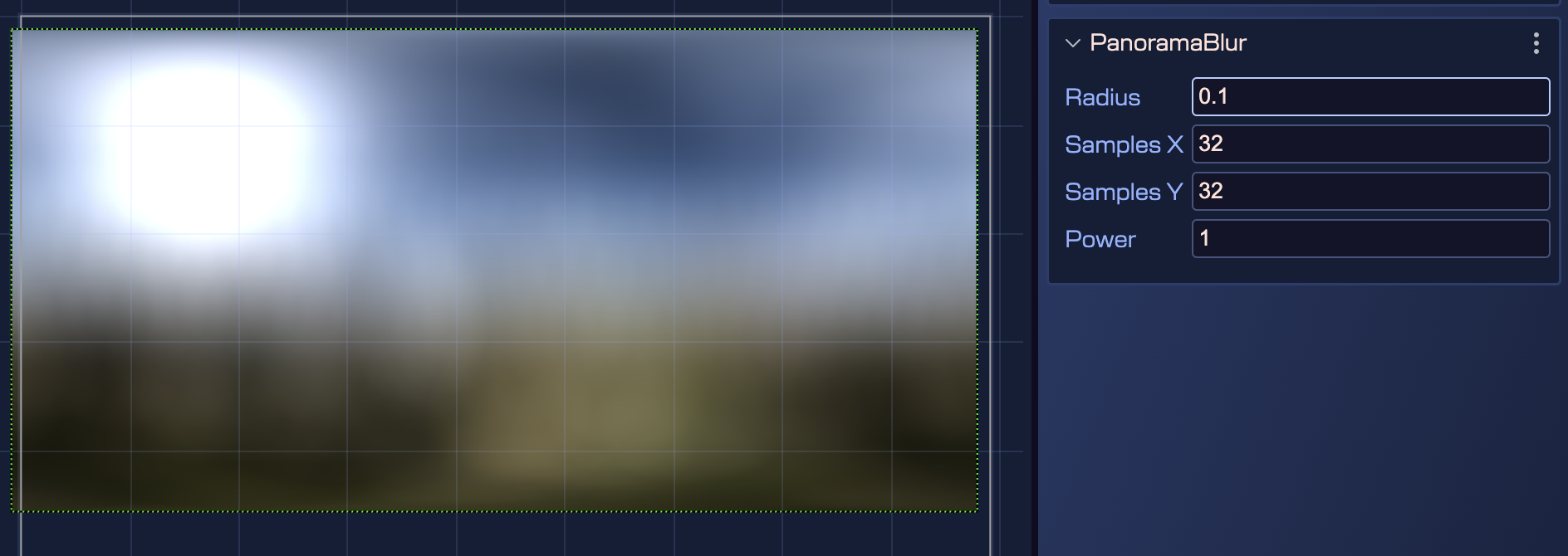
PanoramaBlur is a filter specifically designed for blurring panorama images, intended for use with filters like ImageLight that use a panorama image as the environment map. The blur treats a rectangular map as a sphere and applies heavy distortion close to the poles to get a correct result—it should not be used for general purpose blurring. The effect can be very slow as it uses a grid of samples (samplesX × samplesY), so be careful when increasing these values. By default, the blur is fully diffuse, sampling an entire hemisphere per point; reducing the radius makes the effect more focused, which you can use to control different levels of glossiness in objects using environment maps.
Learn more about the Phaser.Filters.PanoramaBlur properties in the Phaser documentation
CombineColorMatrix
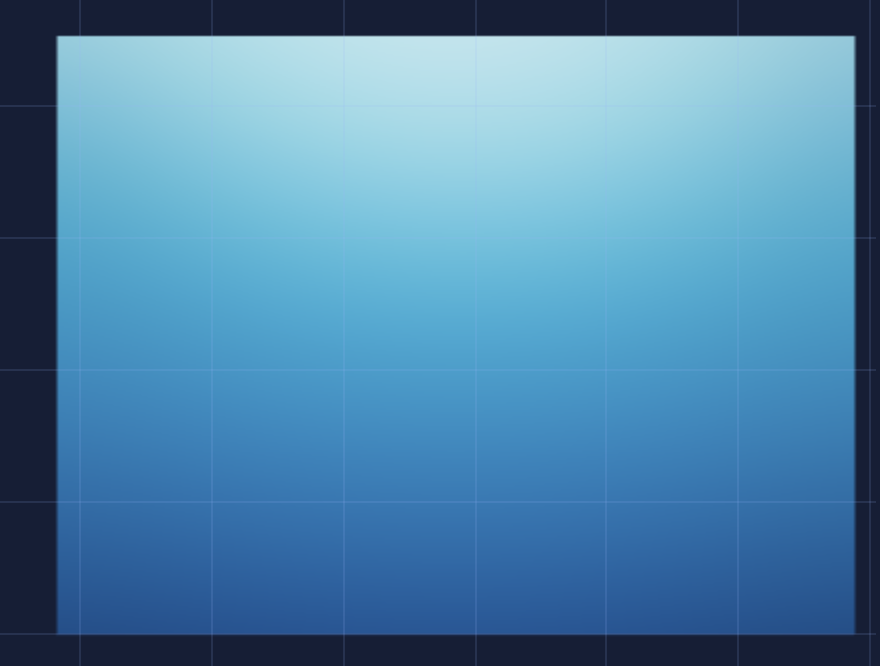
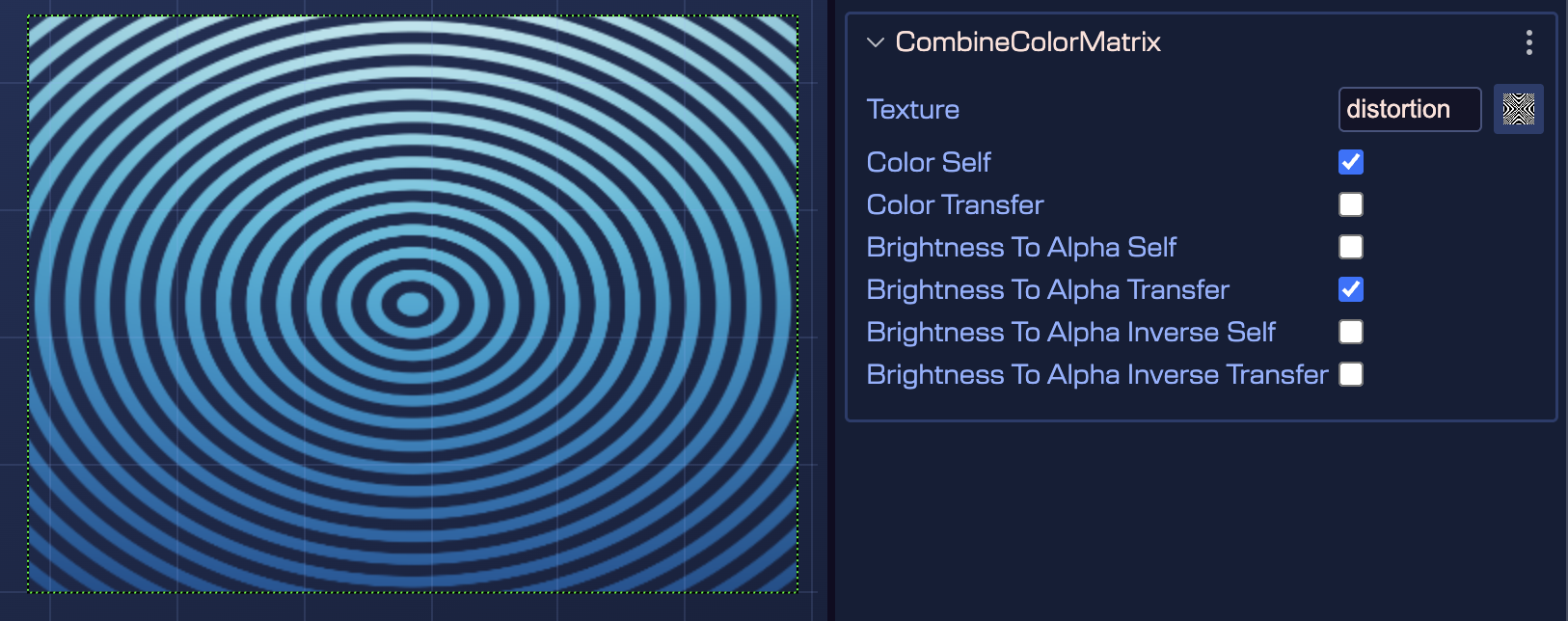
CombineColorMatrix is a filter that combines channels from two textures, with many possibilities for manipulation. A significant purpose is to manipulate alpha channels. The filter uses color matrices (colorMatrixSelf and colorMatrixTransfer) to control how values from the base input and transfer texture are combined. You can use setupAlphaTransfer to configure common options or set the color matrix properties directly. The additions property controls the weight of addition for each channel (R, G, B, A), determining whether values are kept (1) or discarded (0) in the final output.
Learn more about the Phaser.Filters.CombineColorMatrix properties in the Phaser documentation
ParallelFilters
ParallelFilters is a controller that splits the input into two separate filter lists, runs each list independently, and then blends the results together. This effect is useful for reusing an input—ordinarily, a filter modifies the input and passes it to the next filter, but ParallelFilters allows you to split the input and re-use it elsewhere. It manages two FilterLists (named 'top' and 'bottom') and a final Blend filter that combines the results. The 'top' output is applied as a blend texture to the 'bottom' output. You don't have to populate both lists; if only one is populated, it will be blended with the original input, which is useful when you want to retain image data that would be lost in the filter process. A common use case is creating customizable Bloom effects, as it shows the next image:
Learn more about the Phaser.Filters.ParallelFilters properties in the Phaser documentation
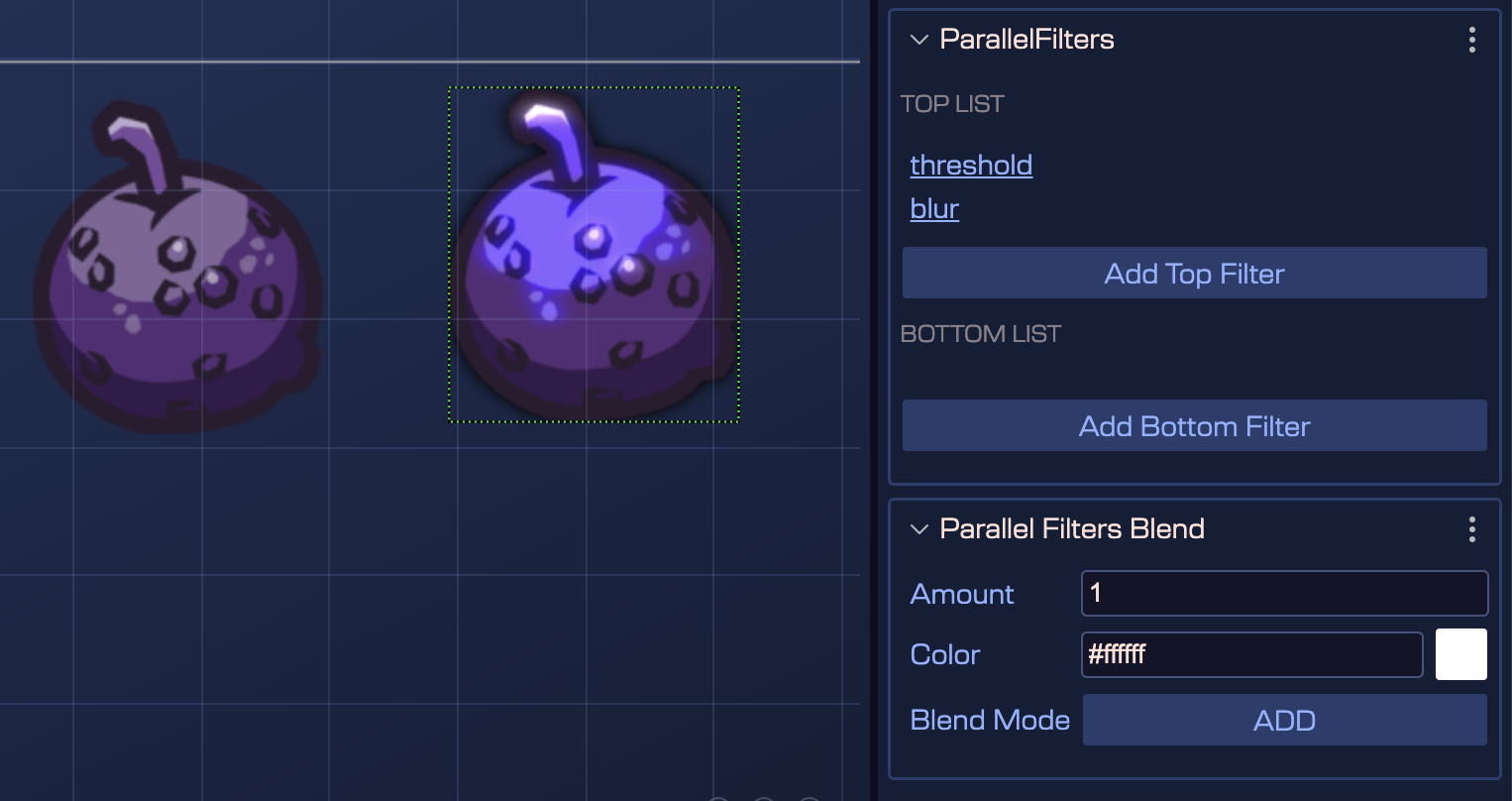
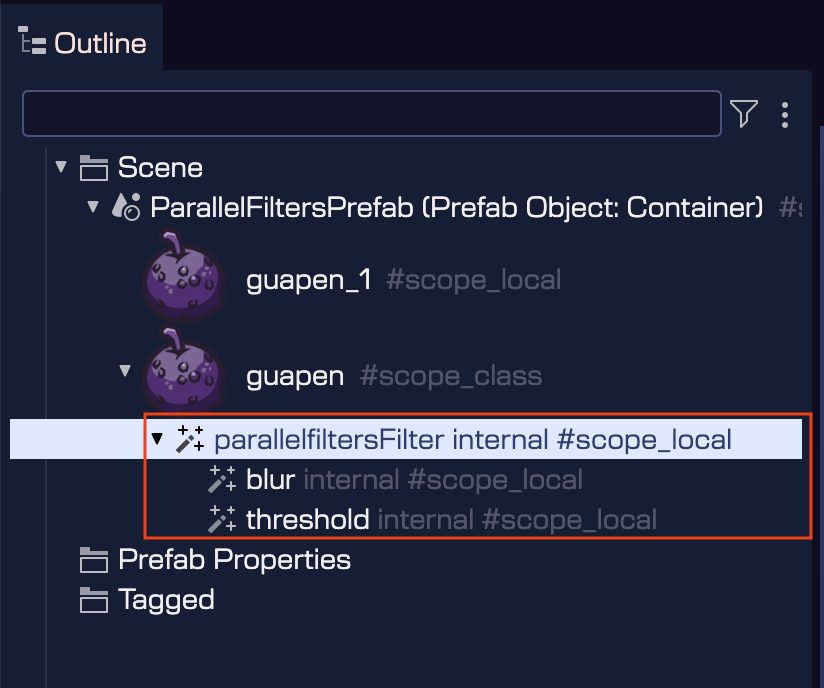
In the Inspector, you can see there are two senctions, one for the top filter list and one for the bottom filter list. Each section has a button to add a new filter to the list.
In the Outline view, all sub-filters are shown below the parallel filter parent. You can select them and do common operations, like edit, delete, declare as nested prefabs, etc...