MCP Server for Phaser Editor v5
In recent years, artificial intelligence has revolutionized the way we develop software, and games are no exception. With the rise of Large Language Models (LLMs), it's now possible to generate game content more efficiently and creatively. To take full advantage of this technology, we've developed a server that connects Phaser Editor v5 with LLMs, making it easier to create and manage game scenes.
Today, most LLMs can connect to a server that implements the Model Context Protocol (MCP) (http://modelcontextprotocol.io). This protocol allows LLMs to interact with the project context, including scene files, assets, and more, to generate content and perform other tasks.
Phaser Editor will be no exception. We've created an MCP server that integrates with Phaser Editor v5, allowing developers to leverage the capabilities of LLMs to improve their workflow and game content creation.
The server is still under development, and many Phaser Editor features are yet to be implemented. However, it is already possible to use it for basic scene creation and management tasks.
Installation
The Phaser Editor MCP Server is included in the editor's installation. It's a program written in NodeJS that communicates with the editor and AI applications.
Each AI application has a way to configure the MCP servers, but they almost always involve the command to run the MCP server.
This is an example of a Cursor configuration:
{
    "mcpServers": {
        "phaser-editor": {
            "command": "node",
            "args": ["/path/to/phaser-editor-mcp.js"]
        }
    }
}
Since the Phaser Editor MCP server is included in the editor's installation, you need to get the full path to the server file. You can find this information in the MCP Server Configuration dialog (main menu → AI → MCP Server Configuration):
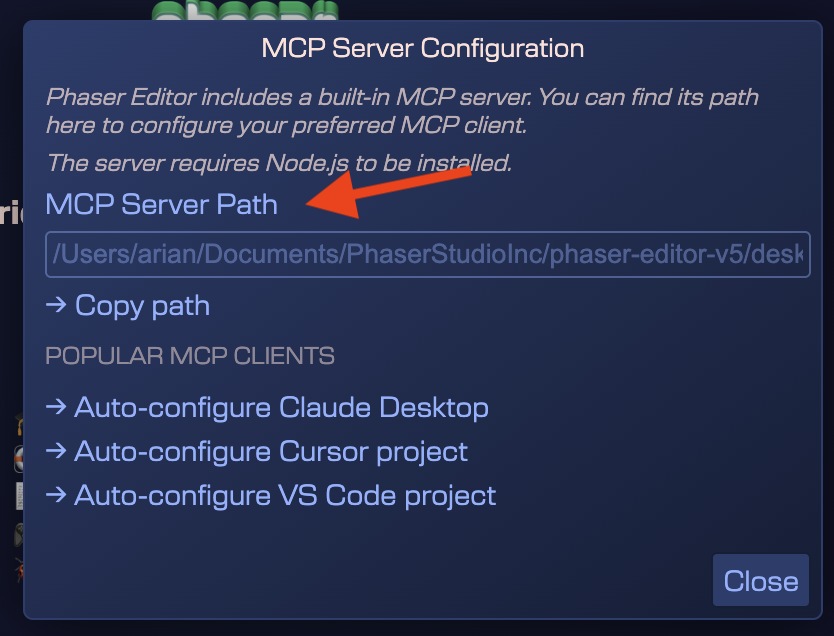
As you can see, this dialog also offers the option to automatically configure some of the most popular AI desktop clients, such as Claude Desktop, Cursor, and VS Code.
The Claude Desktop configuration is global, but the Cursor and VS Code configurations are relative only to the project currently open in the editor. So it will add/modify an mcp.json file in the project.
This servers connects with a running instance of the Phaser Editor v5 desktop application. All changes on the project are made through the Phaser Editor running instance.
Coding
All tools provided by this server are specifically tailored to work with Phaser Editor features, such as the Scene Editor, Asset Pack Editor, and others. These tools are not intended for direct modification of your project's source code. However, when used alongside code editors like Cursor, the server enables simultaneous interaction with both Phaser Editor's custom files and the project's source code—creating a powerful, integrated development workflow.
Using Training Levels to Enhance LLM-Based Content Generation
Large Language Models (LLMs) excel at generating new content when provided with high-quality, contextual examples. This is especially effective for game level generation. To take full advantage of this capability, it's a good practice to create training levels that clearly express the concepts and elements you want the model to replicate.
Why Training Levels Matter
Training levels serve as concrete examples that define the structure and logic of your game. These examples help the LLM understand the components involved and how they interact, enabling it to generate new levels that align with your design.
For example, if you're working with tilemap-based levels, you can create a TrainingLevel scene that includes the key objects used in your game. To improve clarity and semantic understanding:
- Use one layer per object.
- Name each layer with a descriptive identifier, such as
pipe,cloud, ormountain.
This organization helps the LLM detect patterns and apply them to new content generation tasks.
Visual Tools Help—but Context is Key
The MCP server provides tools to inspect texture images and generate scene "screenshots." While these visuals are helpful, they may not always be sufficient for the LLM to fully grasp the game's context and logic.
That's why creating structured and well-labeled training levels is essential. These levels provide a richer, more actionable context that enhances the model's ability to generate accurate and relevant game content.
Tools Overview
This project provides a comprehensive set of tools for managing scenes, assets, tilemaps, animations, and more within the Phaser Editor environment. Below is a summary of all available tools, grouped by their main functionalities.
IDE Tools
- ide-get-all-scenes-in-project: Lists all scenes in the project.
- ide-get-active-scene: Gets the currently focused scene in the editor.
- ide-open-scene: Opens a scene in the editor.
- ide-create-new-scene: Creates a new scene file.
- ide-save-scene: Saves the editor state of a scene.
Assets Tools
- assets-get-available-textures: Lists all available textures in the project.
- assets-get-texture-binary: Gets the binary data of a texture.
- assets-get-available-bitmapfonts: Lists all available bitmap fonts.
- assets-get-bitmapfont-image: Gets the PNG image/texture of a bitmap font.
- assets-get-spritesheet-image: Gets the PNG image/texture of a spritesheet.
- assets-get-texture-content-bounding-box: Gets the bounding box of a texture's content.
- assets-get-available-animations: Lists all available sprite animations.
- assets-get-available-spine-skeletons: Lists all Spine skeletons in the project.
- assets-get-available-spine-atlases: Lists all Spine atlases in the project.
- assets-get-spine-skeleton-info: Gets info (animations and skins) for a Spine skeleton.
- assets-get-spine-skin-image: Gets the PNG image of a Spine skin.
- assets-get-available-tilemaps: Lists all available Tiled tilemap files.
- assets-get-tilemap-data: Gets the data of a Tiled tilemap file.
Scene Tools
- scene-clear-scene: Clears the current scene.
- scene-get-scene-dimension: Gets the dimensions of the current scene.
- scene-get-screenshot: Gets a screenshot of the scene.
- scene-get-scene-data: Gets all objects in the current scene, including their properties.
- scene-move-game-object-in-render-list: Sorts objects in the current scene.
- scene-delete-game-objects: Deletes specified game objects from the scene.
- scene-move-game-objects-to-parent: Moves objects to a specified parent.
- scene-pack-objects-in-container: Groups objects in a container.
- scene-delete-plain-objects: Deletes specified plain objects from the scene.
- scene-add-game-objects: Adds multiple new game objects to the scene.
- scene-update-game-objects: Updates multiple game objects in the scene.
- scene-add-plain-objects: Adds multiple new plain objects to the scene.
- scene-update-plain-objects: Updates multiple plain objects in the scene.
Editable Tilemap Tools
- scene-add-editable-tilemap: Adds a new editable tilemap to the scene. Editable tilemaps are fully modifiable and represented as plain objects.
- scene-add-tileset-to-editable-tilemap: Adds a tileset to an editable tilemap and updates tile IDs in all layers.
- scene-delete-tileset-from-editable-tilemap: Removes a tileset from an editable tilemap and updates tile IDs in all layers.
- scene-add-editable-tilemap-layer: Adds a new layer to an editable tilemap and the scene.
- scene-resize-editable-tilemap-layer: Resizes an editable tilemap layer's data.
- scene-write-editable-tilemap-layer-data: Updates part of the tile data in a layer for efficient changes.
- scene-fill-editable-tilemap-layer-data: Fills a region of a layer with a single tile ID.
- scene-get-editable-tilemap-layer-selection-data: Retrieves selected tile data from a layer as a 2D array.