Content viewers
Viewers are elements to show structured data. In the major of the cases, these elements have a text and an icon. The icon could be a regular icon or a thumbnail image, an in-line preview of the element. It is the case of image files, scene files, asset pack elements like atlases, and sprite-sheets.
All viewers share a common set of features:
- You can zoom in/out the images. Press the
Shiftkey and roll the mouse wheel. - The viewer can have a tree layout or a grid layout. In the case of the grid layout, if you zoom out enough, it will switch to the tree layout.
- You can filter the content of the viewer, displaying only the items with a label that matches the text in the search box. If you clean the search box, all items are shown.
- Both, the grid and tree layout, allow collapsing/expanding the items. With the
Spacekey you collapse/expand the selected item. With theCkey you can collapse all the items. With theEkey you can expand all the items.


- Some viewers (like the Blocks view), show a list/grid view icon to switch between both layouts.
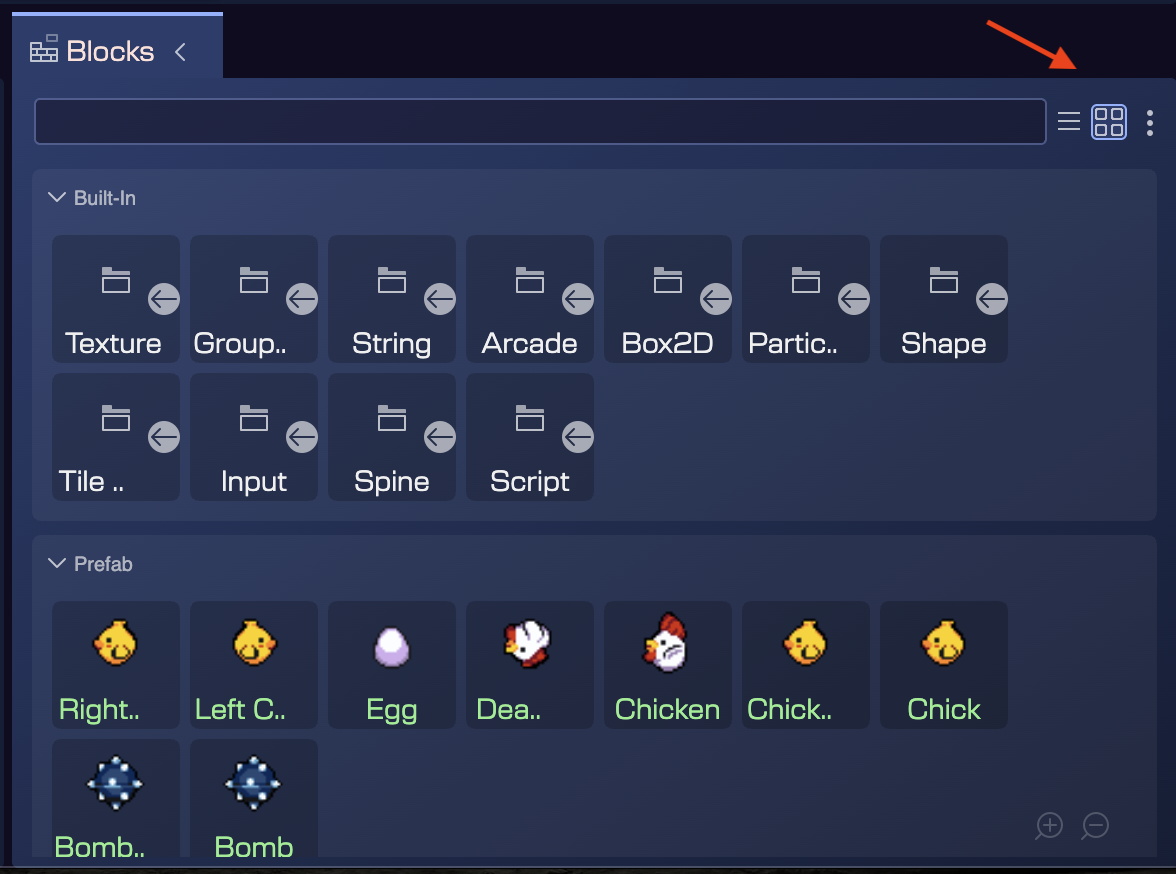
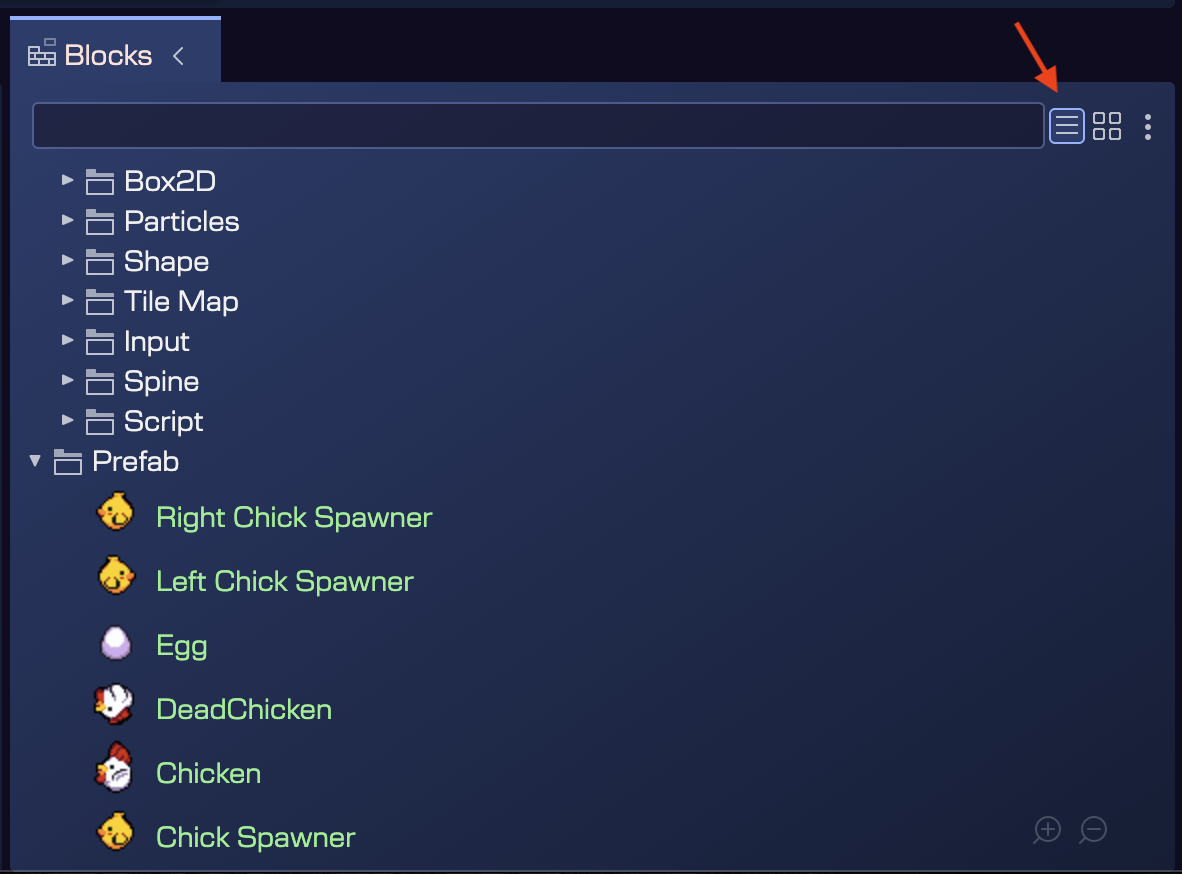
- Some viewers (like the Outline view of the Scene Editor), allow to set custom filtering based on the type of the items or other criteria.
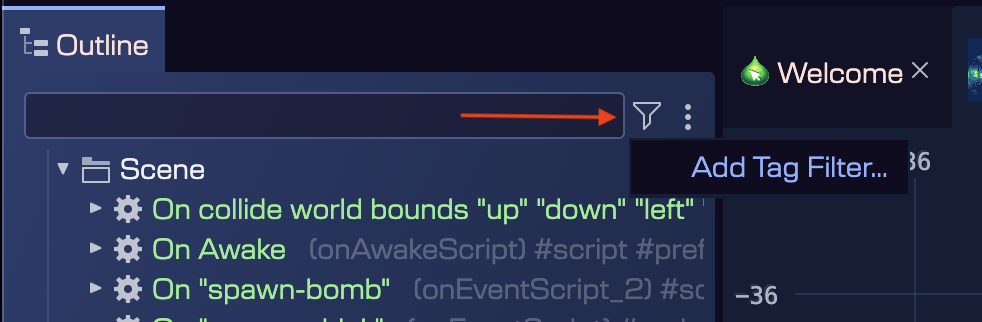
- You can hover the mouse over an item to show a tooltip with additional information about the item.
