AI chat
The most advanced way to integrate Phaser Editor with an AI agent is through an MCP server. The MCP server allows other tools with powerful AI agents to interact with and control Phaser Editor.
However, often we simply want to interact with an AI agent quickly to perform very specific tasks. For these cases, we have implemented our own AI agent that you can interact with through a chat window included in Phaser Editor.
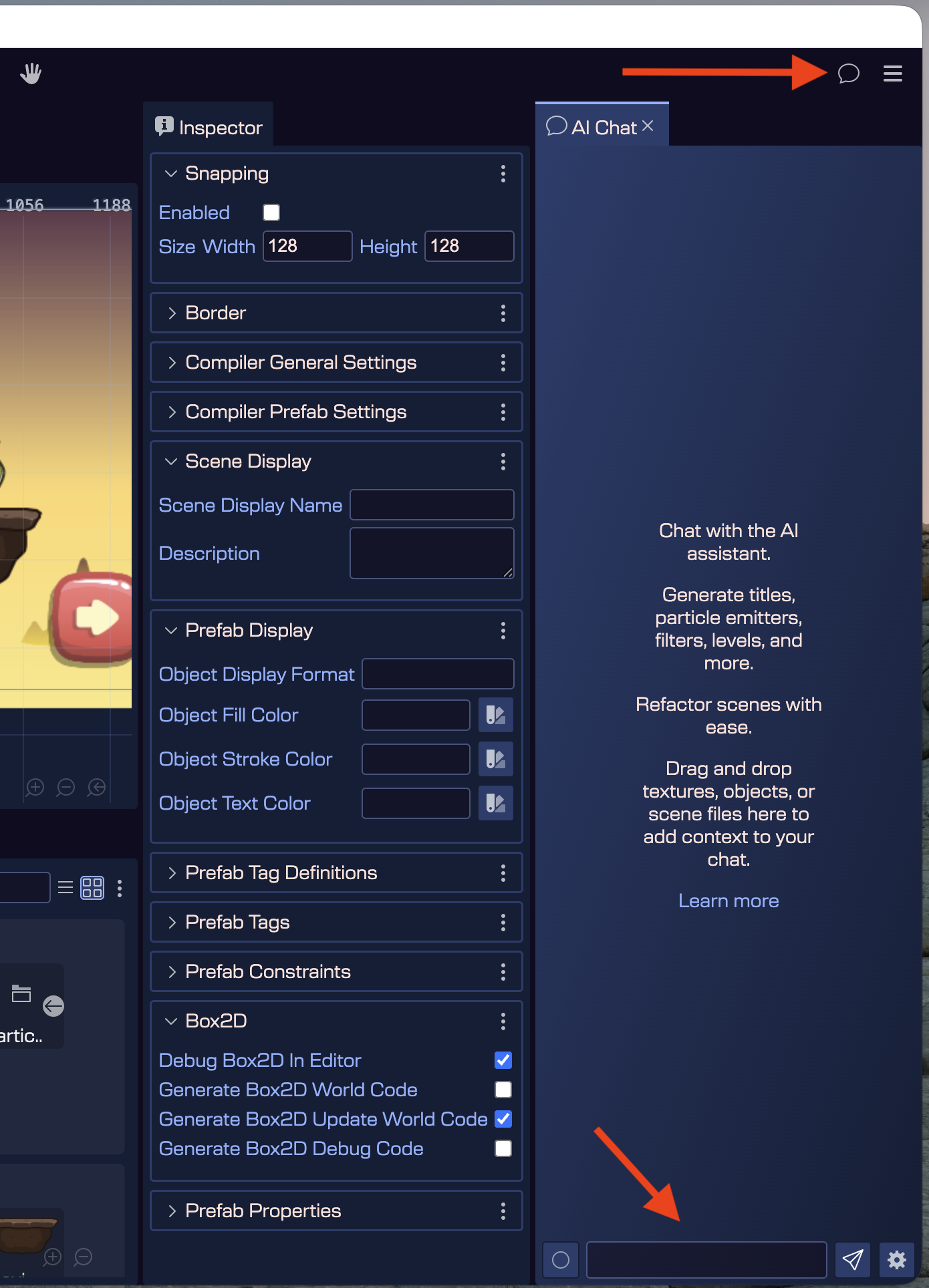
To open the Chat window, click on the chat icon next to the main menu:
Chat settings
Phaser Editor supports some of the most popular AI models: Gemini, Claude, and models compatible with OpenAI. Users must register with an AI model provider and obtain the necessary information to configure the editor. This information includes the API key and the model ID.
In the editor's Settings dialog, you can find the AI Chat tab:
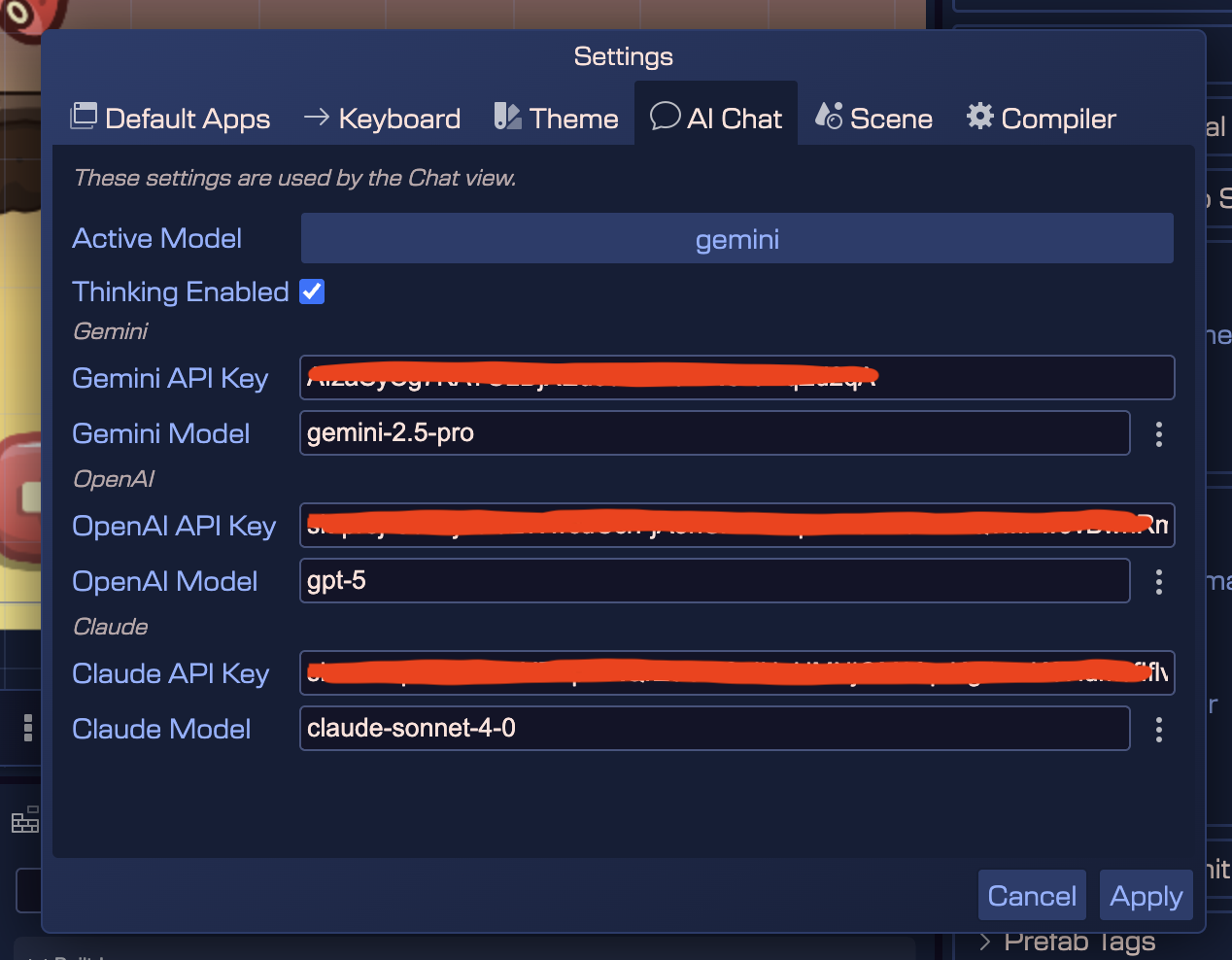
Here you must configure at least one model, its API key, and model name. You must also select which model will ultimately be used in the chat (Active Model).
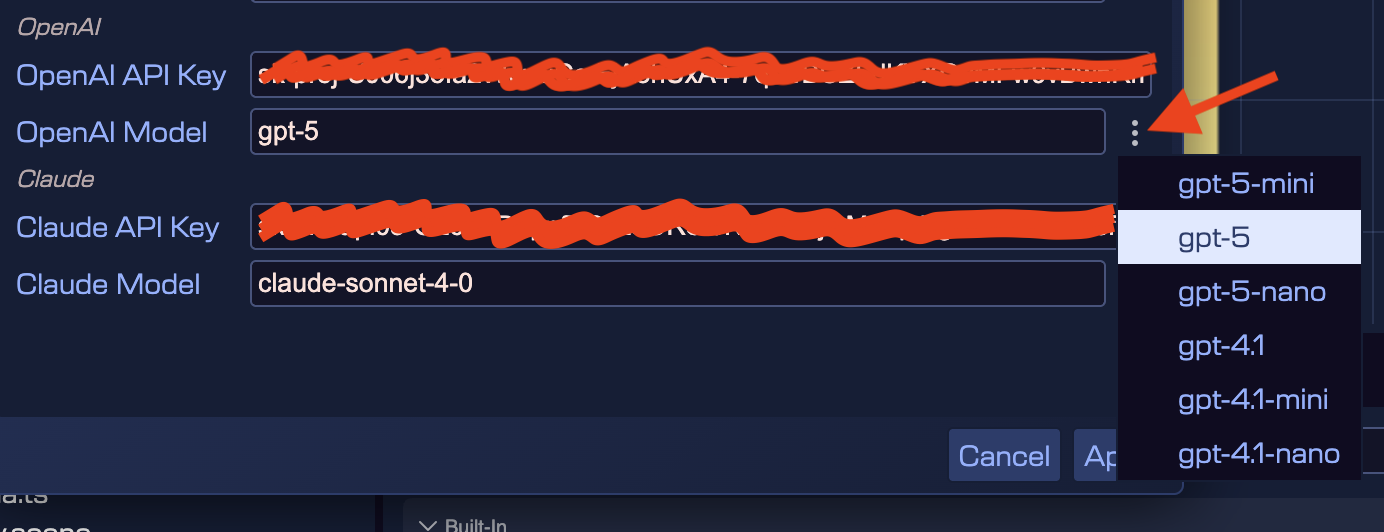
You can write the name of the model or select one from a predefined list:
In addition to the Settings dialog, you can select the active model directly in the Chat window settings menu:
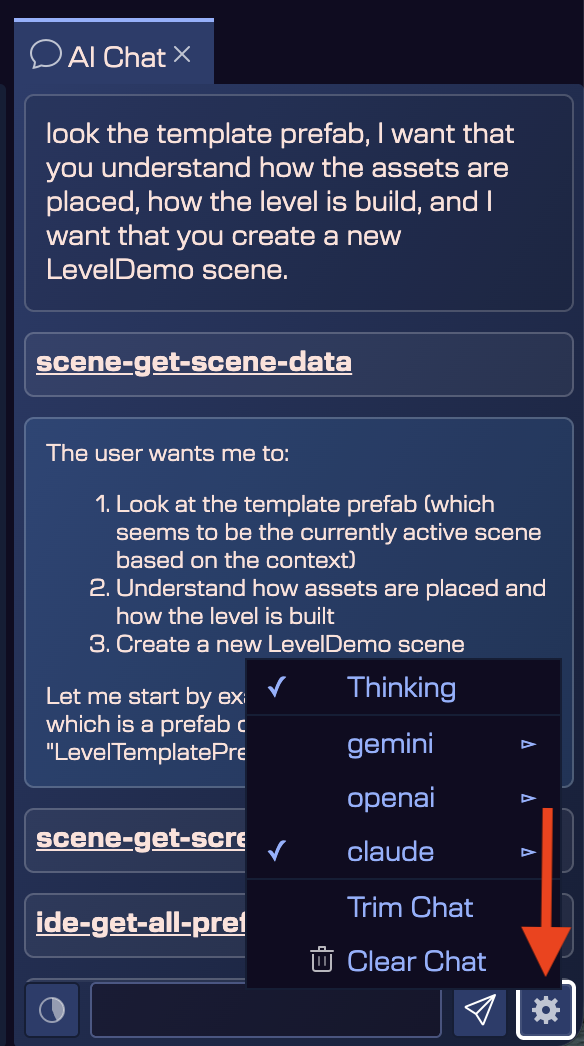
That menu also allows to clear or trim the chat history. The "trim" command reduce the history to the half.
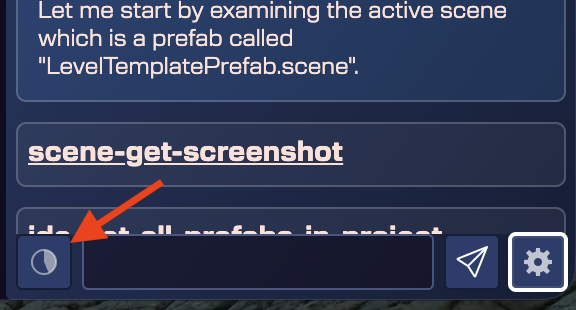
The history button at the left of the chat window shows how much of the model context is consumed by the messages:
Prompt context
An important part of giving instructions to the AI agent is providing the right context. For example, if we want to create a game object with a specific texture, we need to be precise about the name of that texture.
The chat window includes a section for attaching elements to provide context for the prompt. The process is simple: the user drags an element from the editor and drops it into the chat window. All attached elements will be displayed in a dedicated section, and the user can attach more elements or remove those that are already attached.
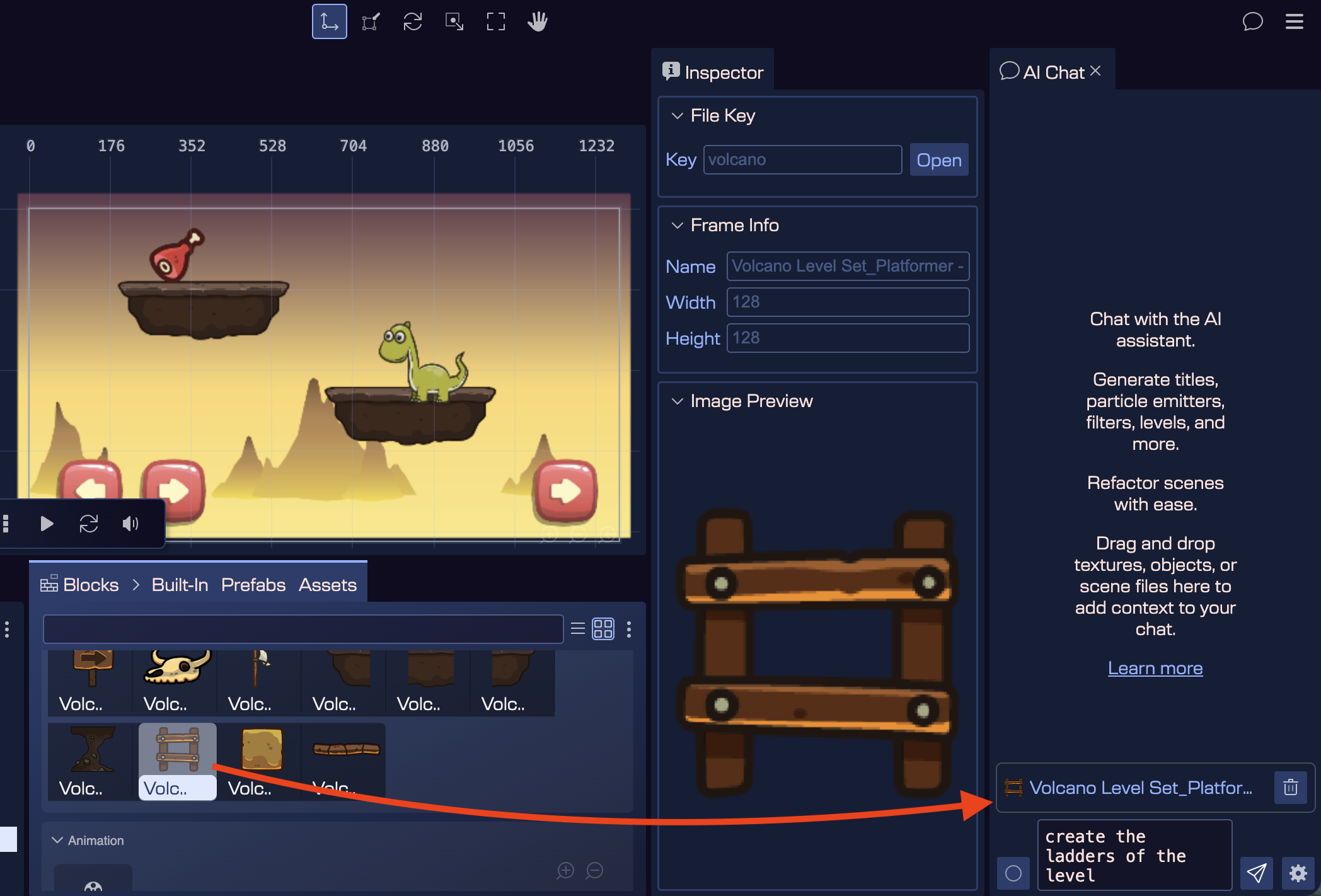
Currently, there are three types of elements that the user can add to this context section:
- Assets: You can drag an asset from the Blocks view.
- Scene files: You can drag a scene file from the Blocks view (prefabs) or the Files view.
- Game objects: You can drag a game object from the Scene Editor's Outline view.
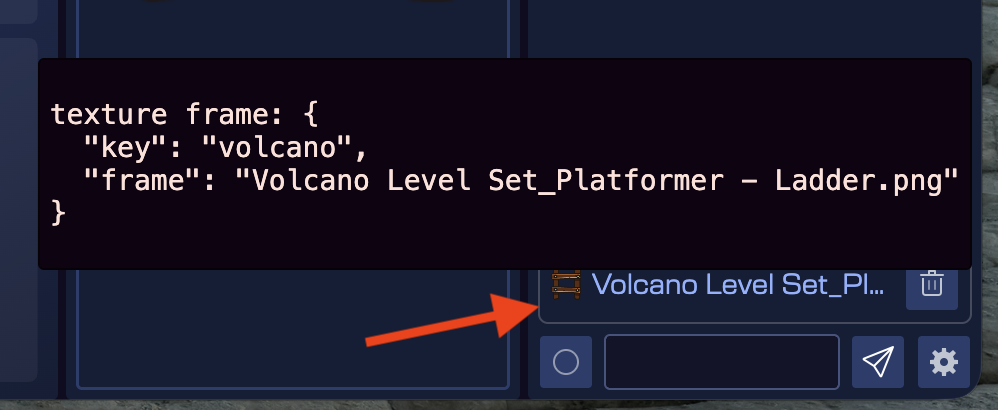
The UI will display the name of each attachment, but if you want to see the exact text that will be used in the prompt, you can hover your mouse over the attachment, and a tooltip will show you the complete information.