Troubleshooting
In this section we will look at some of the most common problems that can arise when using Phaser Editor and how to fix or report them.
First of all, if you have a problem, please make sure you are using the latest version of Phaser Editor. You can check for a new version in the main menu with the Check for Updates option.
If the problem persists, please contact us through the following channels:
- Write us an email at
[email protected]. - Contact us on our Discord server, in the
#phaser-editorchannel: - Open a conversation with our chat integrated in the application.
Here are some of the operations we normally ask the user to perform to help us diagnose and solve a problem.
Configuration folder
Phaser Editor creates a configuration folder on your operating system. In this folder the editor stores application logs, user preferences, recent projects, etc. This folder is named .phasereditor2d and is located in the user folder of your operating system:
<user-home>/.phasereditor2d
Sometimes deleting this folder can help solve a problem.
Application logs
In the configuration folder you can find the logs of the application. These files are:
server.log
desktop.log
If you have a problem, please send us the contents of these files.
Browser logs
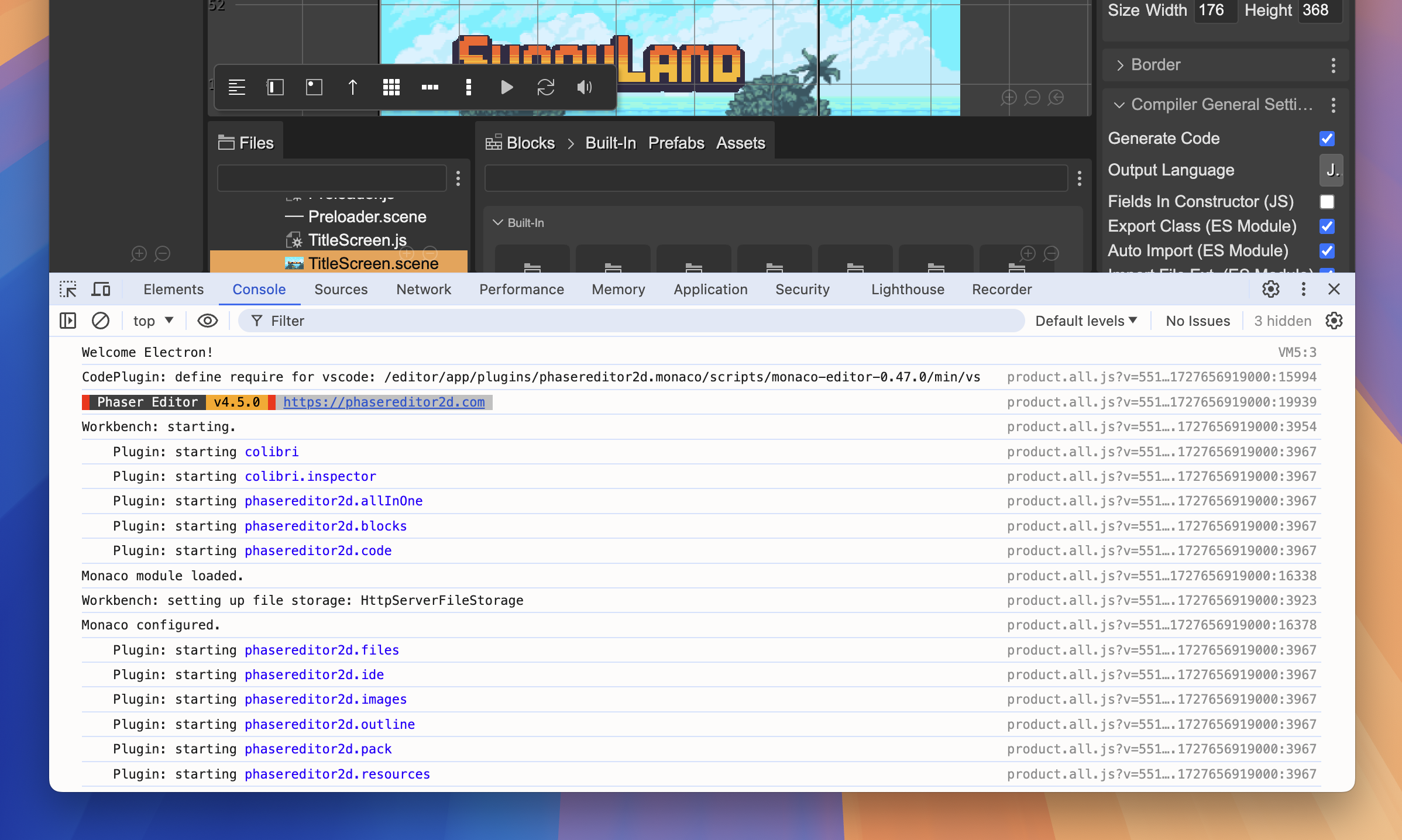
Phaser Editor uses a web browser to render the game. The browser logs can be useful to diagnose a problem. To open the browser console, press Ctrl+Shift+I or Cmd+Option+I. In the Console tab you can see the errors and warnings of the game. Also you may want to check the Networks tab.
Refresh browser
If you have a problem with the editor, like a blank a screen, or a broken scene, try to refresh the browser/app. You can do this by pressing Ctrl+R (Cmd+R).
Clear browser cache
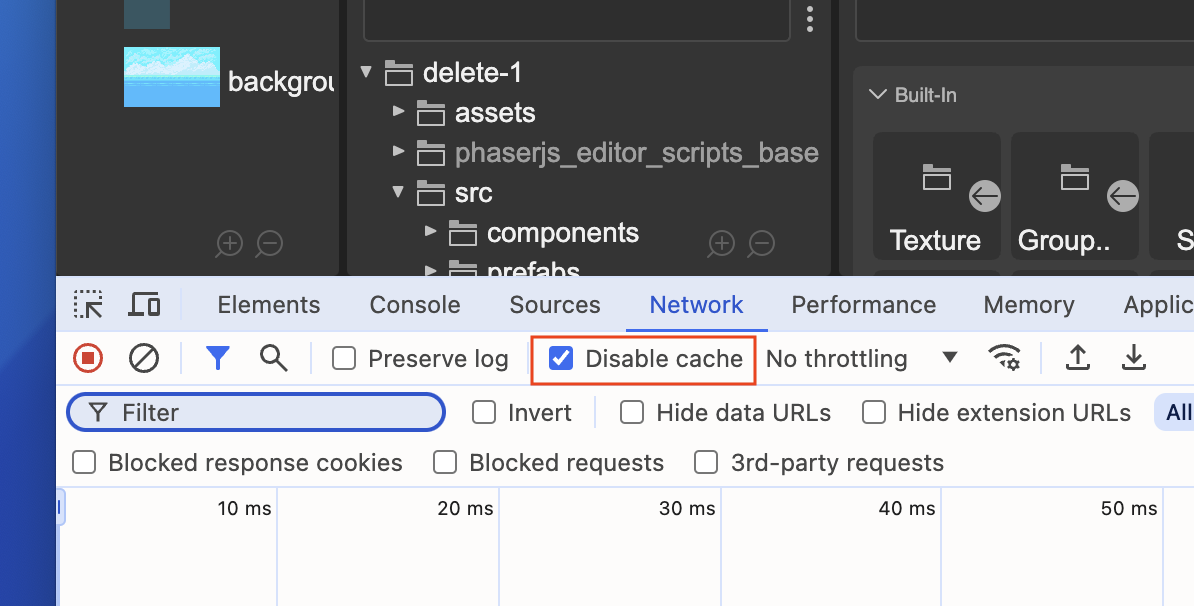
Sometimes the browser cache can cause problems. You can clear the cache by pressing Ctrl+Shift+R (Cmd+Shift+R). Or you can open the DevTools (Ctrl+Shift+I or Cmd+Option+I) and tick the Disable cache option in the Network tab, and Refresh the page (Ctrl+R or Cmd+R).
Phaser Editor Core
Phaser Editor Core is an editor distribution optimized for running in the cloud. The Phaser Editor Desktop edition is a traditional desktop application, which builds on Phaser Editor Core but incorporates features specific to a desktop application. If you are having problems with the Desktop edition, try running the Core edition from the command line of your operating system. This may help identify if the problem is specific to the Desktop edition.
In this chapter we show you how to run Core
Game development server
Most Phaser projects use third-party technologies to make a Phaser distribution. We are talking about tools like Vite, Webpack, ESbuild, etc... All these technologies provide a local development server, which you must run in order to play your game in the browser. It is a common problem that you try to run the game before running this local server. By default, Phaser Editor detects the need to run the development server and gives you the ability to run it for you. However, you may forget this step, so you should verify that the server is indeed active. We recommend that you read the instructions for your project, which are usually in the README.md file.
Scene Editor troubles
Take a look to the troubleshooting section of the Scene Editor chapter.